How to Connect Dhan to Your Trading Journal
Connect your Dhan account to TradeLyser and your trades flow into your trading journal without tradebook downloads or spreadsheets. Dhan is one of the simplest brokers to connect: you don't need to create a developer app or copy an API key. You enter your Dhan Client ID, approve access on Dhan's own login page, and you are done in about 5 minutes.
Once connected you can:
- Sync Dhan trades automatically every weekday night, or with one click whenever you want them sooner.
- Import older Dhan trades with Sync History, up to 5 days per request.
- Turn on Live Insights so your Dhan fills appear in TradeLyser as they happen.
- Track P&L, win rate, fees and tax for every Dhan trade on the TradeLyser dashboard.
What you need
| Requirement | Where to get it |
|---|---|
| An active Dhan trading account | web.dhan.co |
| Your Dhan Client ID | My Profile on Dhan, under Profile Details (Step 1 below) |
| A TradeLyser account | app.tradelyser.com (a free trial is available) |
TradeLyser opens Dhan's login page in a pop-up window. If your browser blocks pop-ups for app.tradelyser.com, nothing seems to happen when you click Connect and Save Account. Allow pop-ups for the site and try again. This is the most common reason a Dhan connection doesn't complete.
Step 1: Copy your Dhan Client ID
- Go to web.dhan.co and log in to your Dhan account.
- Click My Profile on Dhan in the top right corner, under your photo.
- Under Profile Details, copy your Client ID.
There is no developer app, API key or redirect URL to set up for Dhan. TradeLyser connects through Dhan's partner login, and you approve access directly on Dhan's site in Step 2.
Step 2: Add your Dhan account in TradeLyser
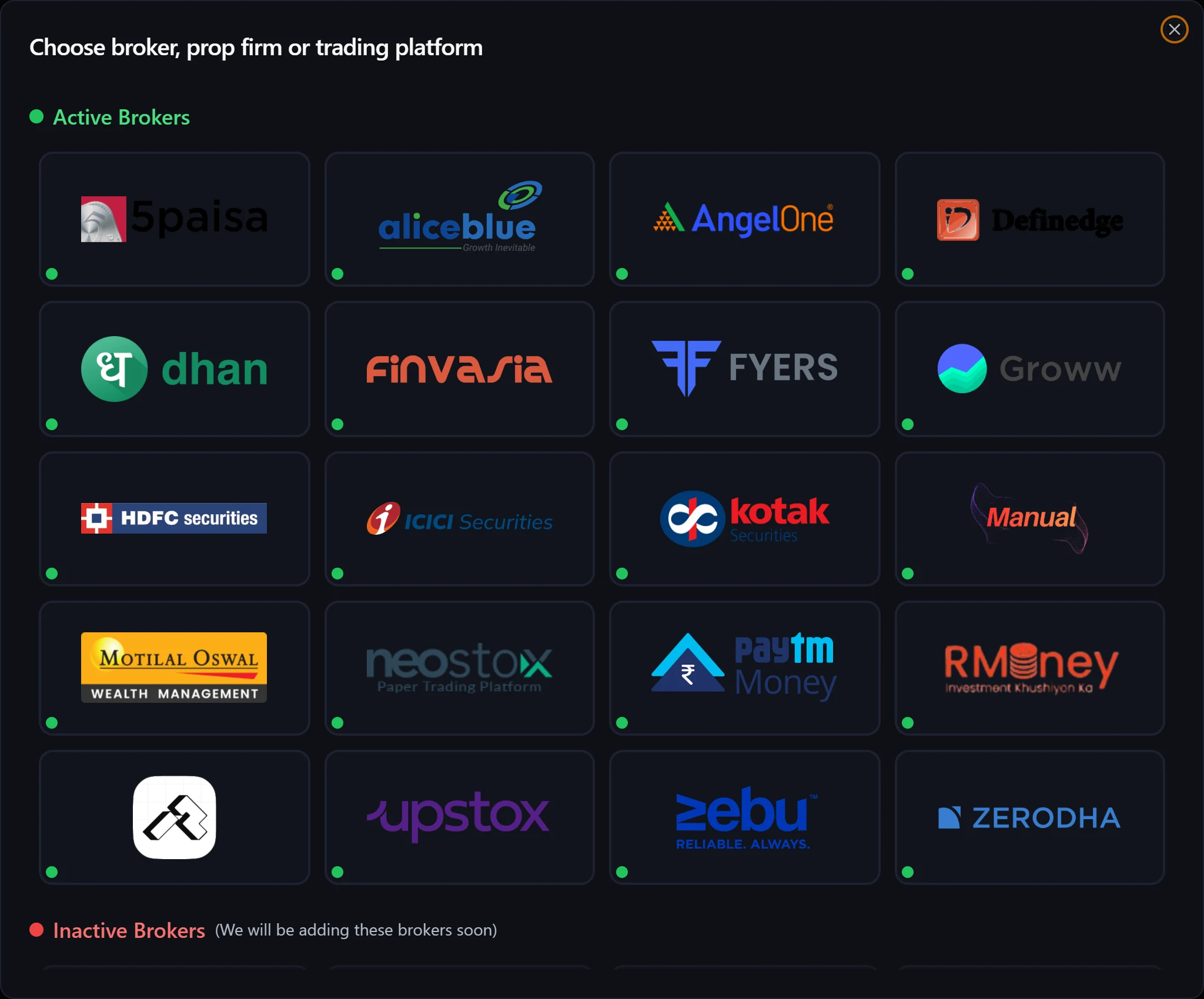
- In TradeLyser, open Accounts and click Add Account.
- Choose Dhan. Brokers with a green dot are supported for Auto Sync.
- Choose a calculation method. This decides how buys and sells are matched into trades:
- FIFO (first in, first out) is recommended. It matches how most Indian brokers report P&L.
- LIFO matches the most recent buy first.
- WA uses the weighted average price.
- Choose Auto Sync as the import method.
- Enter an account name (for example
Dhan – F&O) and paste your Client ID from Step 1 if the form asks for it. - Click Connect and Save Account. A Dhan login window opens. Log in to Dhan and approve access.
- You are returned to TradeLyser and see Dhan Connected Successfully.
The calculation method and import method cannot be changed after the account is created. If you need a different method later, add a second Dhan account in TradeLyser.
Step 3: Sync your Dhan trades
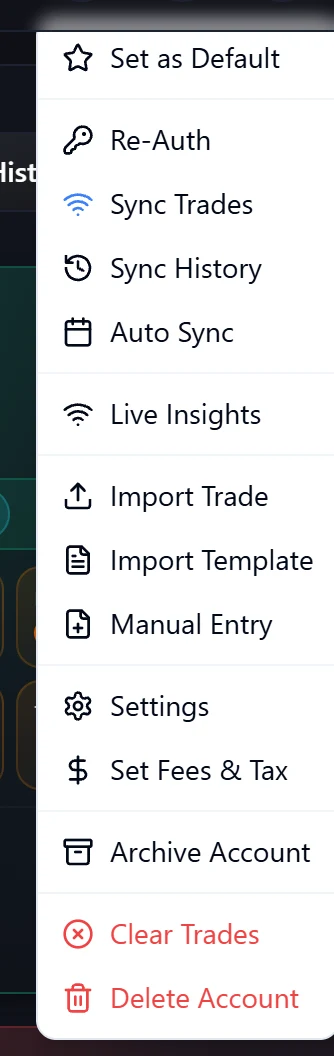
Open the ⋯ actions menu on your Dhan account card:
| Action | What it does |
|---|---|
| Sync Trades | Fetches today's orders from Dhan. You can choose to skip fees, taxes or slippage, then click Fetch Orders. Large syncs run in the background and you get a notification when they finish. |
| Sync History | Fetches older Dhan trades for a date range, up to 5 days per request. Orders already imported are skipped. |
| Live Insights | Connects a live order feed from Dhan, so fills appear as they happen. |
| Re-Auth | Logs in to Dhan again when the login has expired. |
| Import Trade | Imports a Dhan trade file instead (see Import Dhan trades from a file). |
TradeLyser also syncs your Dhan account automatically every Monday to Friday at 10:30 pm IST, as long as your Dhan login is still valid at that time. Run Sync Trades whenever you want today's trades in TradeLyser sooner, for example right after the market closes.
After a sync, click the refresh icon in the TradeLyser header so every dashboard widget picks up the new trades straight away.
Import your Dhan trade history with Sync History
Dhan's history sync covers up to 5 days per request. To build a longer history, run it several times, one 5-day window at a time:
- Open the ⋯ actions menu on the Dhan account and choose Sync History.
- Click Date Range and pick a From and To date no more than 5 days apart (for example Monday to Friday of one week).
- Click Sync trades. The sync runs in the background and TradeLyser opens Settings → Sync History, where you can follow its status.
- Repeat for the next 5-day window, working back week by week until you reach the start date you want.
Because orders that were already imported are skipped, overlapping windows don't create duplicates. Once your history is in, reports and analytics such as win rate, expectancy and P&L by symbol reflect your real track record.
Turn on Live Insights for Dhan
Live Insights connects a live order feed, so you don't have to wait for an end-of-day sync to see your fills.
- Open the ⋯ actions menu on the Dhan account and choose Live Insights.
- In Dhan Push Settings, switch on Enable Push from Dhan.
- Connection Status changes to Connected. Click View Traded Orders to see the orders received.
The account card's Live indicator shows whether the feed is connected (Live) or not (Offline).
Re-authenticate when the login expires
Dhan logins expire. When that happens, the account card shows Re-auth required. Log in again before 10:30 pm so the nightly sync can run: open the ⋯ actions menu, choose Re-Auth and log in to Dhan again. The account card's Token field shows how long the current login remains valid.
If your Dhan login has expired, TradeLyser reminds you with a bell notification and an email in the morning (around 8:30 am) and a last call around 9 pm, so you can log in before the 10:30 pm sync. Accounts that are still logged out at 10:30 pm are skipped that night. To stop these reminders for an account, choose Turn off login reminders in its ⋯ actions menu.
Prefer to import a file?
If you don't want to connect the API, choose File Upload as the import method and import a Dhan trade file with Import Trade. TradeLyser has a dedicated Dhan parser. See Import Dhan trades from a file.
Troubleshooting Dhan connection issues
| Problem | Fix |
|---|---|
| Nothing happens after Connect and Save Account | Your browser blocked the Dhan pop-up. Allow pop-ups for app.tradelyser.com and try again. |
| The Dhan window closed but the account isn't connected | Approve access on the Dhan page before closing it. Then use Re-Auth from the ⋯ menu. |
| Account shows Re-auth required | The Dhan login has expired. Use Re-Auth from the ⋯ menu. |
| Today's trades are missing | Run Sync Trades after the order is executed (or wait for the 10:30 pm nightly sync), then click the header refresh icon. |
| Older trades are missing | Run Sync History in windows of 5 days or fewer. |
| Live Insights shows Disconnected | Re-authenticate the account, then switch Enable Push from Dhan off and on again. |
| Wrong P&L matching (FIFO vs LIFO) | The calculation method can't be changed. Add a new Dhan account with the method you want. |
Still stuck? Follow Troubleshoot broker connection or Trades not syncing, or email support@tradelyser.com.
Frequently asked questions
Does TradeLyser support Dhan?
Yes. Dhan is supported for Auto Sync through Dhan's partner login, for Sync History and Live Insights, and for File Upload with a dedicated Dhan file parser.
Do I need a Dhan API key to connect?
No. Dhan connects through a partner login, so you only need your Client ID and your normal Dhan login.
How far back can I import Dhan trades?
Each Sync History request covers up to 5 days. Run it repeatedly, one window at a time, to go further back.
Can I connect more than one Dhan account?
Yes. Add each Dhan account separately from Accounts → Add Account. The number of accounts you can add depends on your TradeLyser plan. See Add multiple accounts.