Trade Replays: Replay Any Trade Candle by Candle
Trade Replays plays back a completed trade candle by candle: before your entry, while you held it and, if you want, after your exit. You can put it next to the underlying, the opposite option leg, the spot or Nifty. It is the fastest way to answer was my entry late, was my stop too tight, and did I exit too early?
Availability: Pro. Open it at app.tradelyser.com/trade-replays, or choose Trade Replays in the sidebar.
With Trade Replays you can:
- Step through a trade one candle at a time on 1 to 60-minute charts.
- See your real running P&L at every candle, using your actual entry price and quantity.
- Compare what you would have made trading the underlying or the opposite leg instead.
- Measure MFE and MAE to judge your stop and your exit.
What you need
| Requirement | Details |
|---|---|
| A Pro plan | Trade Replays is a Pro feature. |
| Completed trades | Only closed trades can be replayed. Open positions show Available for completed trades only. |
| Trades in TradeLyser | Synced from your broker, imported from a file or entered manually. See Sync broker trades. |
Step 1: Choose a trade to replay
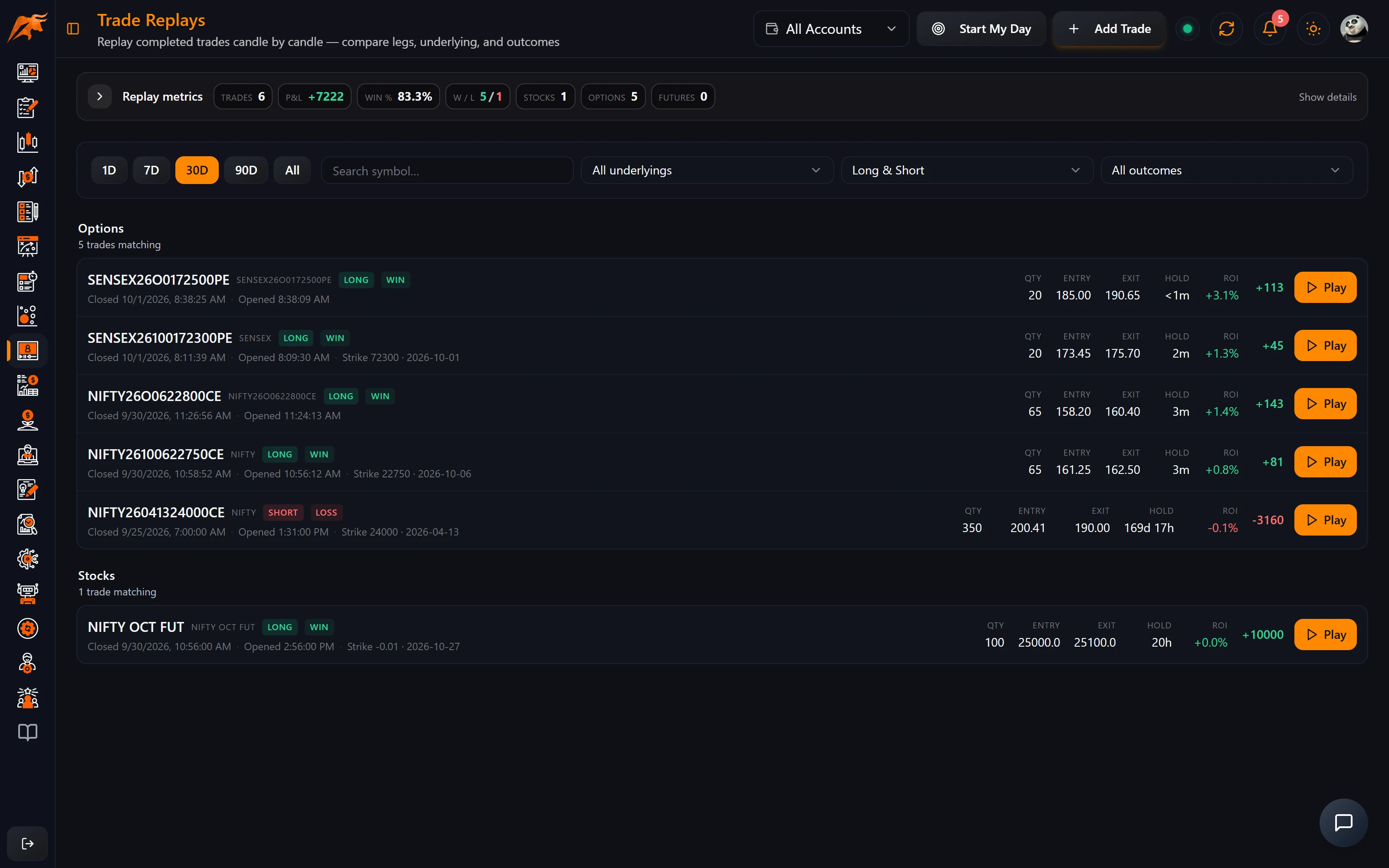
- Open Trade Replays. The Replay metrics card shows win rate, average P&L, average holding time and top symbol separately for stocks, options and futures. Breakeven trades are left out of the win rate.
- Pick a quick range: 1D, 7D, 30D, 90D or All. The default is 30 days, so choose All to find older trades.
- Narrow the list by type, underlying, direction (long or short) and outcome (profit or loss), or search by symbol.
- Click a trade to open the replay.
You can also start a replay from anywhere you see a trade: click the Replay icon on any trade in the Trades Log or in Trade Details.
Step 2: Replay the trade
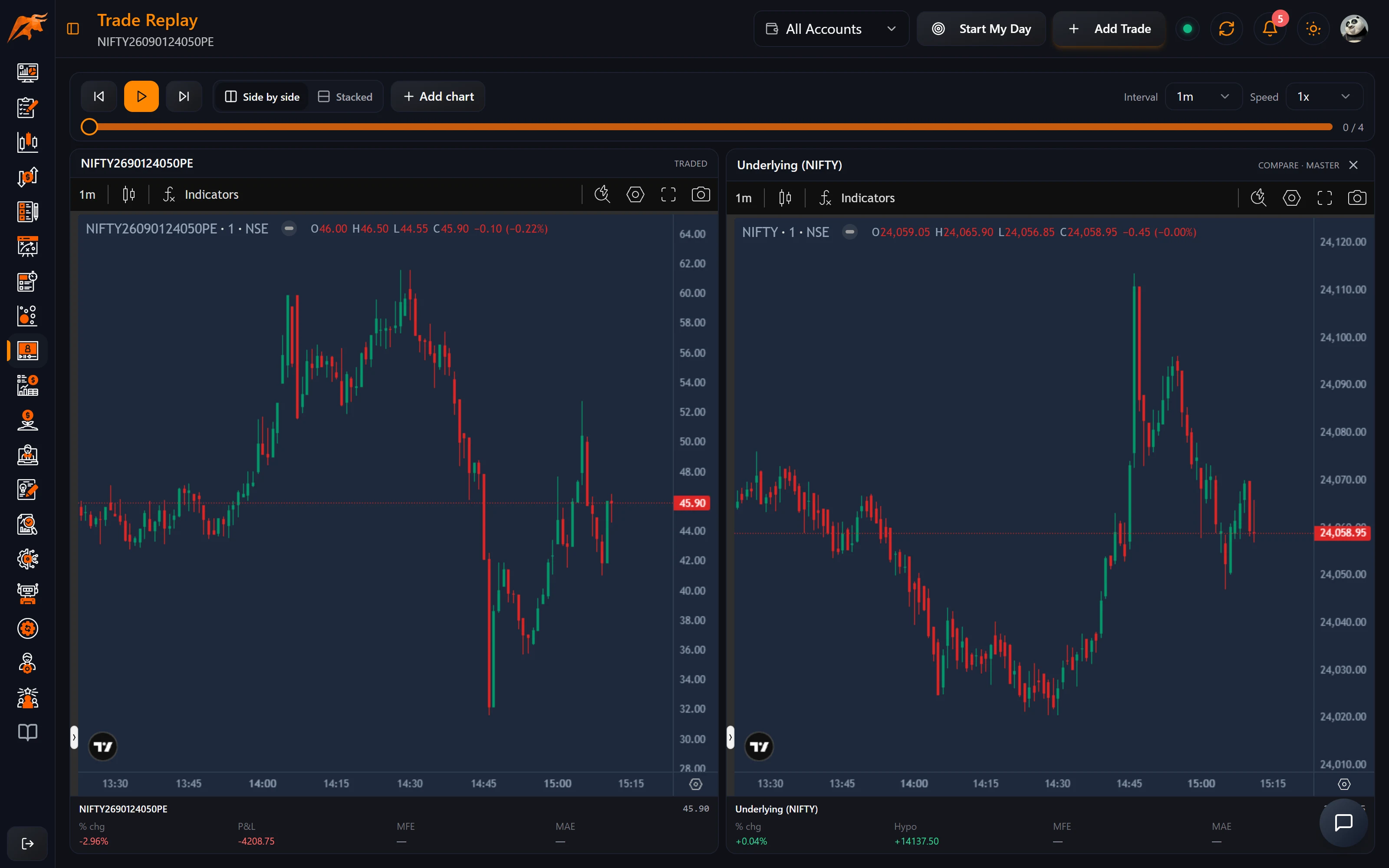
- Press Play, or step one candle at a time with ◀ and ▶.
- Choose the Speed and the candle Interval that suit the trade.
- Drag the scrub slider to jump straight to your entry or exit.
- Use Add chart to put a related instrument next to your trade, and switch between Side by side and Stacked layouts.
| Control | What it does |
|---|---|
| ◀ ▶ and Play/Pause | Step one candle back or forward, or play continuously. |
| Speed | 0.5×, 1×, 2× or 4×. At 1× one candle plays per second. |
| Interval | 1, 3, 5, 15, 30 or 60-minute candles. |
| Scrub slider | Drag to jump to any point. The counter shows the current candle out of the total. |
| Side by side / Stacked | Arrange the charts horizontally or vertically. |
| Add chart | Add the underlying (for options), the opposite leg (CE ↔ PE of the same strike), the spot (for futures) or Nifty (for stocks). Up to four charts. |
Each chart shows a few numbers that update as the replay plays:
| Metric | Meaning |
|---|---|
| Price / % chg | Current price and change since your entry candle. |
| P&L (traded chart) | Your real running P&L, using your actual entry price and quantity. |
| Hypo (added charts) | What you would have made trading that instrument at the same moment, size and direction. |
| MFE / MAE | The best and worst running P&L so far while in the trade. |
How to read a replay
- MAE against your stop loss: if the trade dipped close to your stop and then worked, the stop may be too tight. If MAE went far beyond where your stop should have been, you held a loser too long.
- MFE against your exit: a large gap between MFE and your final P&L means you gave back profit. Turn on post-exit context to see what happened after you closed.
- Hypo on the underlying: for option buyers, compare the option's P&L with the Hypo P&L on the underlying to see which instrument would have served that move better.
Step 3: Set your replay defaults
Set your defaults in Settings → Trade Replay:
| Setting | Options |
|---|---|
| Chart arrangement | Side by side or stacked. |
| Charts to show | Primary only, + underlying/spot, + opposite leg, or both. |
| Base interval and playback speed | The interval and speed each replay opens with. |
| Pre-entry context | 0–5 days of candles before your entry (default 2). |
| Post-exit context | 0–2 days of candles after your exit. |
| Markers | Entry and exit markers on the chart. |
Changes you make inside a replay apply to that replay only; to change the default, update Settings. These settings are saved in this browser, so set them again on a new device or browser.
How to use it in your routine
Replay your three biggest losers each week. Pause at your entry and ask would I take this again? Then compare MAE with your stop loss and MFE with your exit. Once you see a pattern, write it into a strategy rule in the Strategy Lab, and check over the next few weeks whether trades that follow the rule do better. For a full review method, read How to review your trading journal on the TradeLyser site.
If the replay shows a setup worth practising, take it into Backtesting and trade the same kind of day again with virtual capital.
Troubleshooting Trade Replays
| Problem | What to check |
|---|---|
| The trade isn't in the list | The hub opens on the last 30 days. Choose All, and clear any type, direction or outcome filters. |
| The replay won't open for a trade | Only completed trades can be replayed. Open positions show Available for completed trades only. |
| The chart is blank | No candle data was found for that symbol and period. This is common for very old trades or unusual symbol formats. |
| The opposite-leg chart is empty | TradeLyser couldn't find data for the matching CE/PE contract. |
| My default settings are gone | Replay settings are saved per browser. Set them again in Settings → Trade Replay. |
| Trade Replays is locked | It needs a Pro plan. See Compare plans. |
Frequently asked questions
Which trading journal has trade replay?
TradeLyser includes Trade Replays on the Pro plan. It replays your own completed trades candle by candle, with your real P&L, next to the underlying or opposite option leg.
Can I replay option trades against the underlying index?
Yes. Use Add chart and choose the underlying. The Hypo figure shows what the same trade on the underlying would have made.
What are MFE and MAE in Trade Replays?
MFE is the best running P&L reached while you were in the trade, and MAE is the worst. Compare them with your exit and your stop loss.
Can I see what happened after I exited?
Yes. Set post-exit context (up to 2 days) in Settings → Trade Replay.