Your Data and Privacy in TradeLyser
This page explains, from what the app actually does, what information TradeLyser holds about you and your trading, who else can see it, and the controls you have to limit, export or delete it. For the legal terms, read the TradeLyser Privacy Policy and Terms, which you agree to when you create an account. If anything on this page differs from those documents, the policy applies.
In short:
- Your journal is visible only to you unless you share it with a mentor or publish a day with Social Share.
- You choose exactly which categories a mentor sees, and can pause or revoke access at any time.
- You can export your trades and invoices, and delete trades or whole broker accounts yourself.
What TradeLyser stores
| Type of data | Examples | Where it comes from |
|---|---|---|
| Account and profile | Name, email, profile picture, mobile number, location | Sign-up, Settings → Profile, the trial dialog |
| Broker accounts | Account names, the credentials your broker requires for Auto Sync (for example Client ID, API key and secret), connection status | The Add Account wizard |
| Trading data | Orders, completed trades, open positions, fees and tax settings, balances, deposits and withdrawals | Broker sync, file uploads, manual entry |
| Journal content | Notes, tags, star ratings, strategies, checklists, chart screenshots and other attachments | What you write and upload |
| Billing details | Billing name, WhatsApp number, address, PIN code, state, optional GSTIN, invoices and subscription history | Checkout and Settings → Subscription |
| Optional integrations | WHOOP recovery, sleep, HRV and strain data | Only if you connect WHOOP (Pro) |
| Affiliate details | Contact details, bank account and IFSC for payouts | Only if you apply to the affiliate program |
Payments are completed in the Razorpay payment window, where you enter your card, UPI, net-banking or wallet details.
How your data is used in the app
- Building your journal. Orders are matched into trades with your account's calculation method, and each trading day gets a journal entry.
- Analytics. The Dashboard, Trades Log, Strategy Lab, Trade Insights and reports are calculated from your own trades.
- AI features. When you use Lysa (for example to ask questions, write notes, or map tags and strategies), it works with your own journal and trade data. These features use AI credits from your plan.
- Your mobile number. It's needed to start a trial or subscription. As the trial dialog says, if the number is on WhatsApp, TradeLyser may also share offers and product updates there.
- Site analytics. The TradeLyser Terms state that cookies or analytics tools may be used to collect aggregated, non-identifiable information about how the platform is used, such as visits and pages viewed.
Who can see your data
Only you, by default
Your trades, journal and analytics are tied to your login. There's no team or shared workspace.
A mentor, only if you allow it
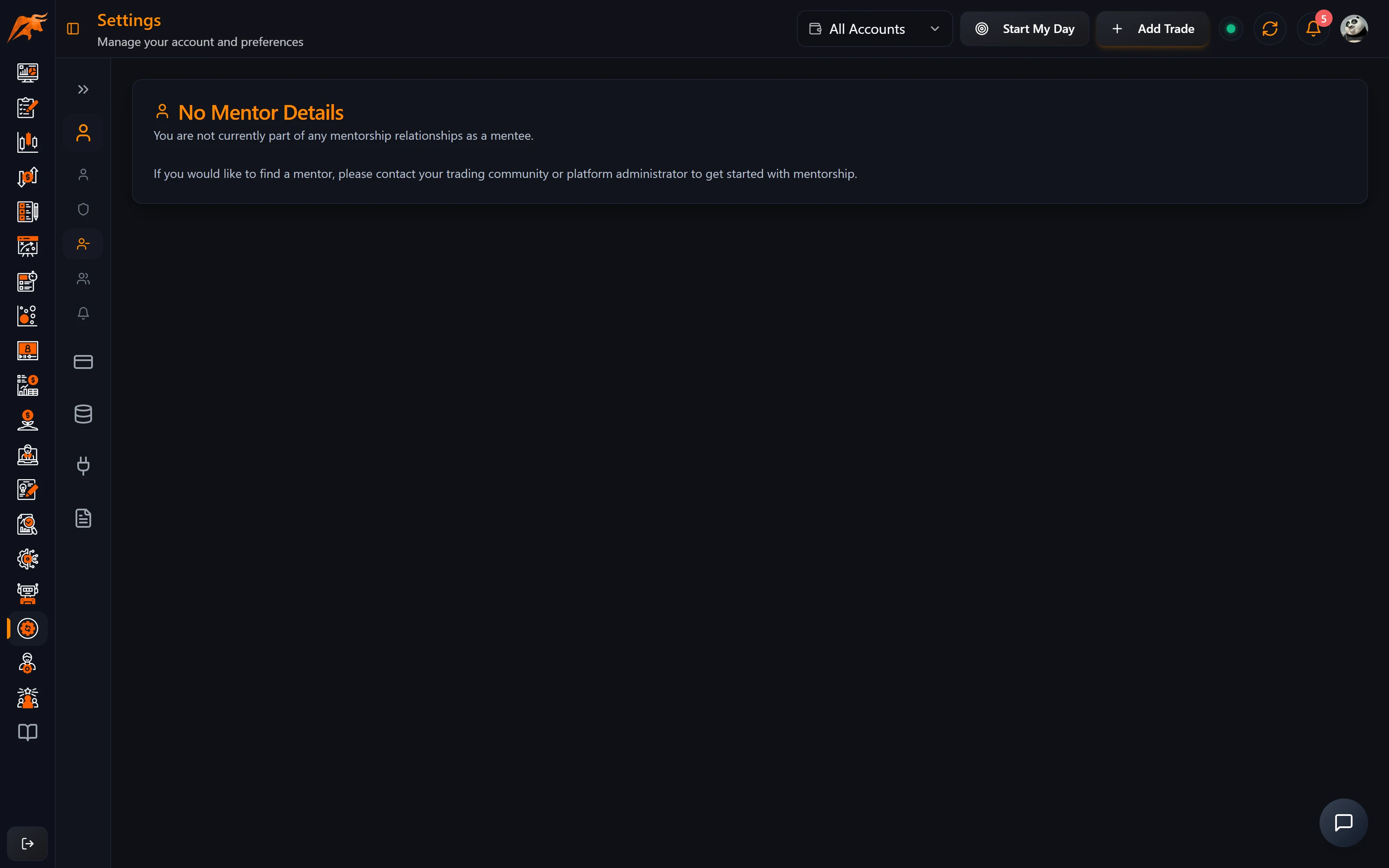
If you accept a mentor's invitation, you choose what they can see in Settings → Mentee Access:
| Category | Covers |
|---|---|
| Trades & positions | Completed trades, P&L and metrics |
| Journal | Daily journal entries and session notes |
| Open positions | Current positions and exposure |
| Notebook | Trade notes and notebook entries |
| Discipline diary | Rules and daily tracking |
| Analytics | Strategies and analytics views |
All six are on by default when you accept, so review them straight away. Mentors can only view. They can't change your trades or journal. Every page a mentor views is recorded in an audit log. You can Pause all data sharing or Revoke Access at any time. See Manage mentee permissions.
The public, only for days you publish
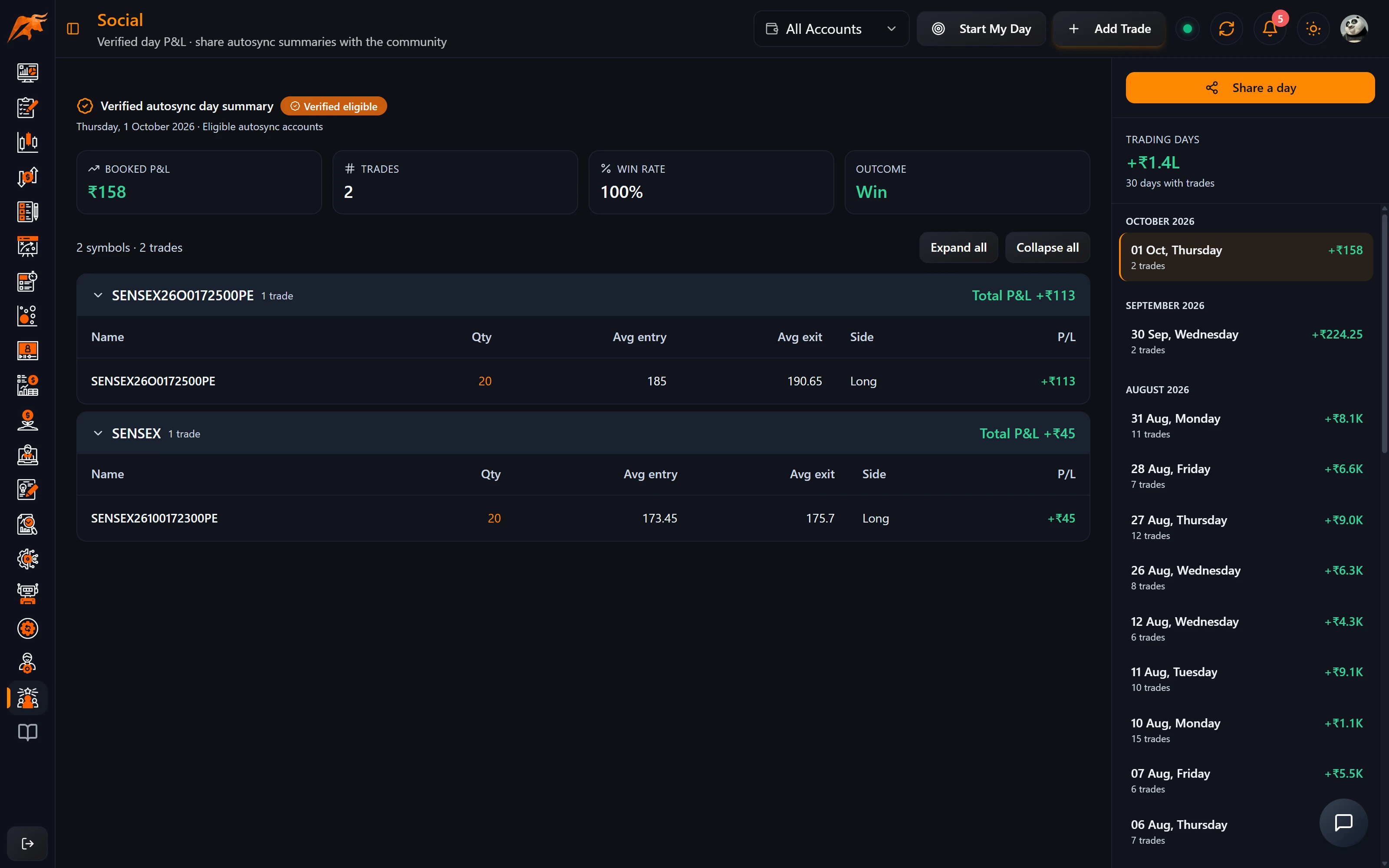
Social Share publishes a single verified trading day as a card or link, and only when you click Publish & get link. You choose:
- P&L on share card: Hidden (the default), ₹ P&L, % ROI or both.
- Whether to include your 12-month P&L heat map and live positions.
- Visibility: public feed or unlisted link, and Link duration (unlimited, 24 hours, 7 days or 30 days).
- Public profile: turn it off to hide your Social profile from other members.
Privacy controls in the app
| Control | Where | What it does |
|---|---|---|
| Eye icon | Dashboard and Wealth Hub | Hides rupee amounts (shown as ****) for screen sharing. Remembered on that browser. Chart axes aren't masked. |
| Mentee Access | Settings → Mentee Access | Choose categories, approve requests, pause or revoke a mentor. |
| Social profile | Social Share → Edit | Display name, bio, avatar, sharing defaults and Public profile. |
| Notification Settings | Settings → Notification Settings | Choose which notifications you receive. |
| Support Settings | Settings → Support Settings | Show or hide the support chat, Quick Access button and voice assistant. |
Exporting your data
- Trades: in the Trades Log, Download CSV exports completed trades for the selected account and date range. Open Positions has the same option.
- Invoices: in Settings → Subscription → Tax Invoices, click PDF for each GST invoice.
- Reports: see Export reports.
Deleting your data
| What | How |
|---|---|
| A single trade | From the Trades Log. See Delete a trade. |
| All trades in one broker account | Clear Trades (Pro) on the account's ⋯ menu. Type CLEAR to confirm. Removes trades, positions, journals and orders for that account. |
| A broker account | Delete Account on the account's ⋯ menu, once the account has no trades (run Clear Trades first on the Pro plan). This can't be undone. |
| A sync record | Settings → Sync History. Deleting a record removes it immediately. |
| Mentor access | Revoke Access in Settings → Mentee Access. |
| Your whole TradeLyser account | There's no self-serve option in the app. Email support@tradelyser.com from your account's email address. |
Clear Trades and Delete Account are permanent. Download a CSV from the Trades Log first if you might need the data.
Frequently asked questions
Can my mentor edit my trades?
No. Mentors have read-only access to the categories you share, and every page they view is logged.
Is my P&L shown when I share a day on social media?
Not unless you choose it. P&L on share card is Hidden by default.
How do I delete my TradeLyser account?
Email support@tradelyser.com from the email on your account. TradeLyser deletes the account within 1 week of your request. You can delete individual broker accounts and trades yourself in the app. See Delete your TradeLyser account.
Where is the TradeLyser privacy policy?
It's linked from the sign-up form and available at tradelyser.com/terms-conditions#privacy.