Backtesting: Practise Trading on Historical Market Data
TradeLyser Backtesting lets you paper-trade on real historical candles replayed bar by bar. You start with virtual capital, place trades as the market unfolds, take notes, and review the results on a dedicated dashboard, without risking real money. It answers would my setup have worked on those days, and do I trade it the same way live?
Availability: Pro. Open it at app.tradelyser.com/backtesting/sessions, or choose Backtesting in the sidebar.
With Backtesting you can:
- Replay stocks, futures, commodities, crypto, and index options on NIFTY, BANKNIFTY, FINNIFTY, MIDCPNIFTY, SENSEX and BANKEX.
- Trade with Buy and Sell buttons while candles play at 1× to 10× speed.
- Keep notes per session and get an AI review of a note.
- Compare a backtest with your live trades in the same strategy.
Your sessions
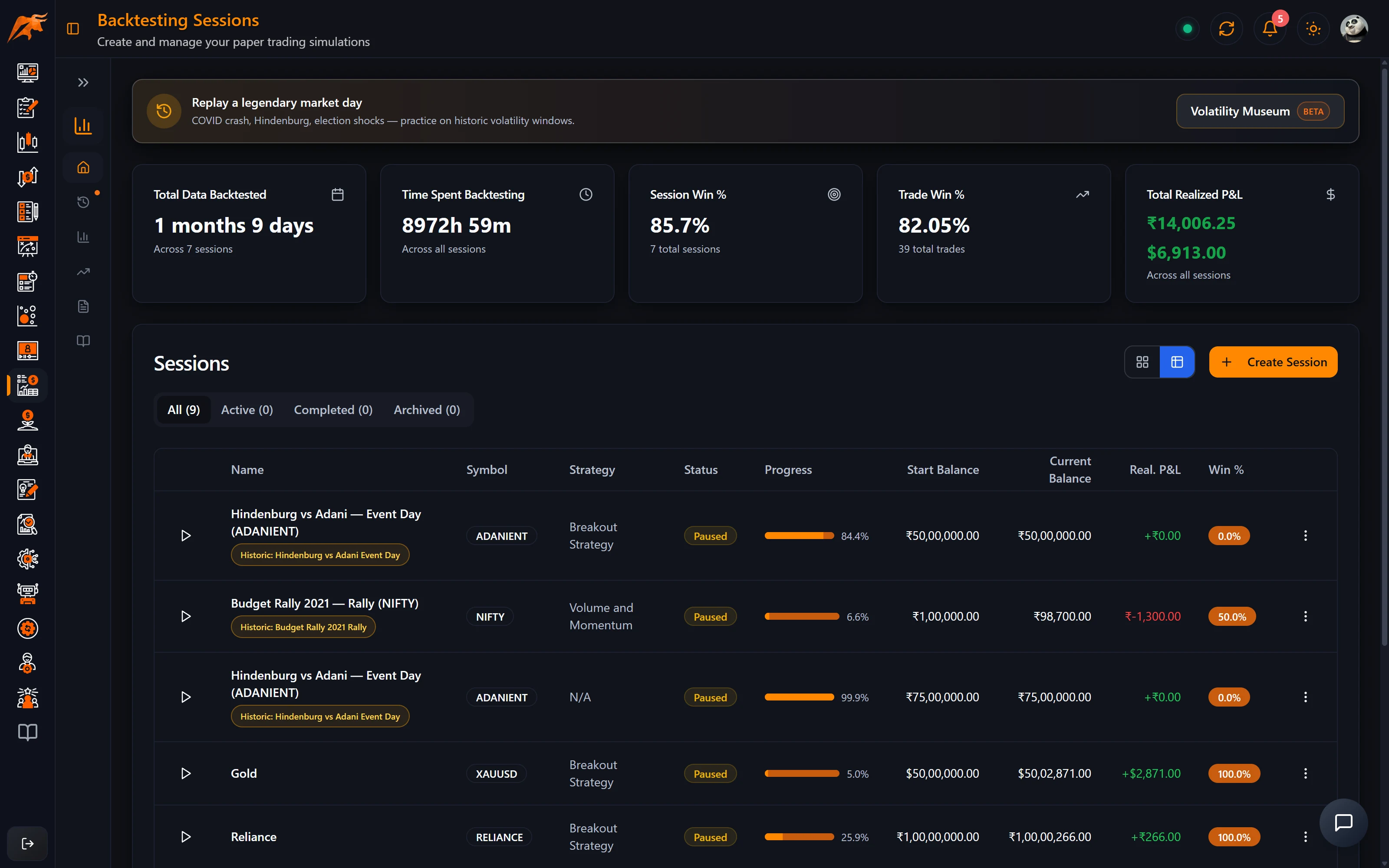
- Summary cards show the total period you have backtested, session win % (sessions in profit), trade win % and total realised P&L.
- Tabs filter All, Active, Completed and Archived sessions. Switch between table and grid view.
- Each session's ⋯ menu lets you Open, Archive or Delete it.
- The number of sessions you can keep depends on your plan, and archived sessions count towards it.
Step 1: Create a session
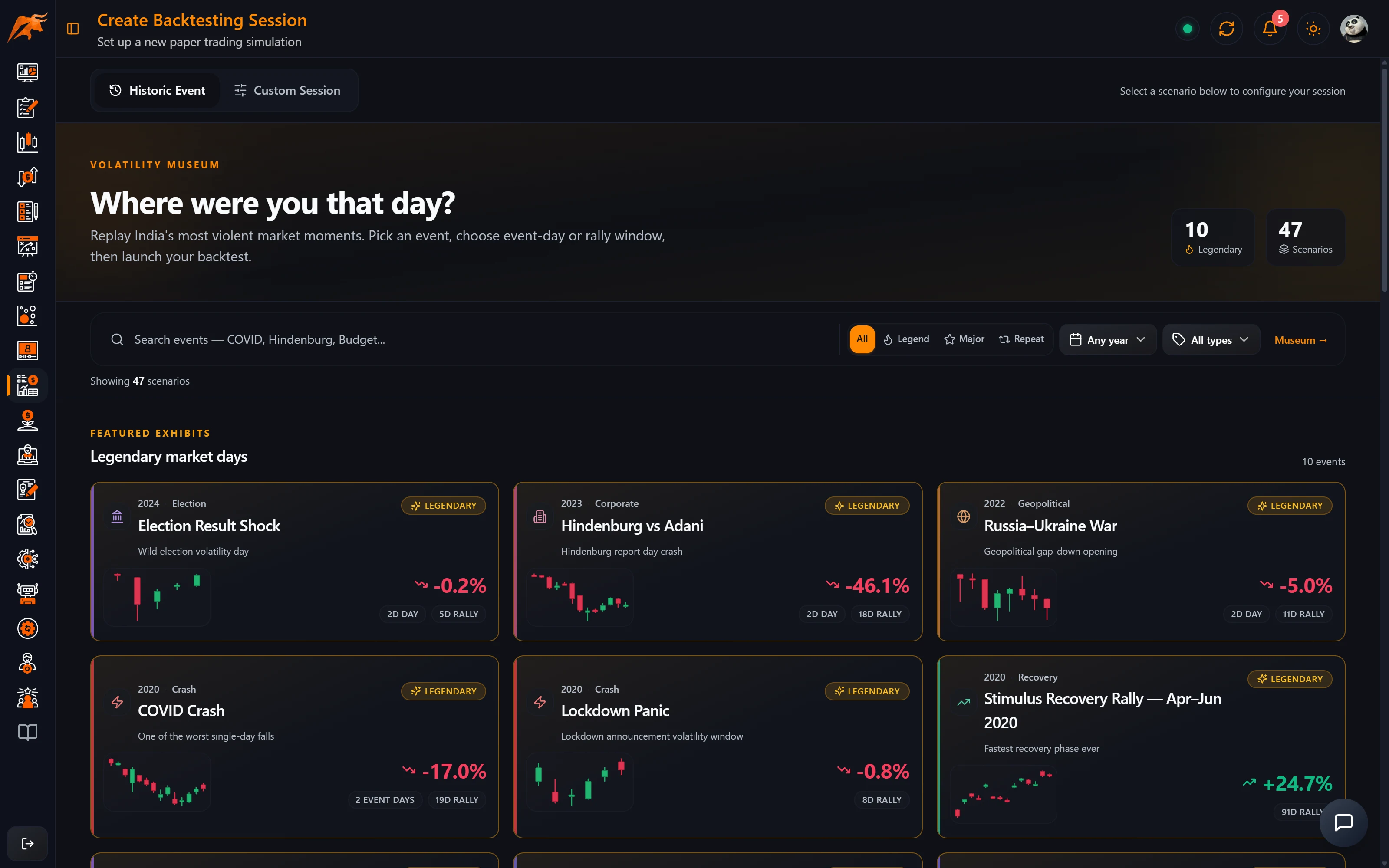
- Click Create Session. Choose Historic Event to start from a Volatility Museum scenario, or Custom Session to pick your own dates.
- Enter a Session Name and an optional description. Optionally link a Strategy; you need this to compare the backtest with your live trades later.
- Choose the Type (Stocks, Options, Futures, Commodity or Crypto) and the Symbol.
- Choose the Start Date and End Date.
- For Options, pick the expiry and optionally the CE and PE strikes. Leave them on Auto (ATM) to use the at-the-money strike.
- For Commodity or Crypto, choose the Leverage. The helper text shows how large an adverse move would wipe out your margin. These are priced in USD.
- Choose a Starting Balance (₹50K to ₹1 crore, or type your own) and click Create Session.
Sessions open on a 1-minute chart; change the timeframe on the chart toolbar (1–60 minutes, daily, weekly or monthly). Futures sessions chart the underlying index. For options sessions before 2026, the CE and PE charts follow strikes by moneyness (ATM, ATM±1 and so on) on the current weekly expiry; from 2026 they use the exact contract you chose.
Step 2: Trade in the session
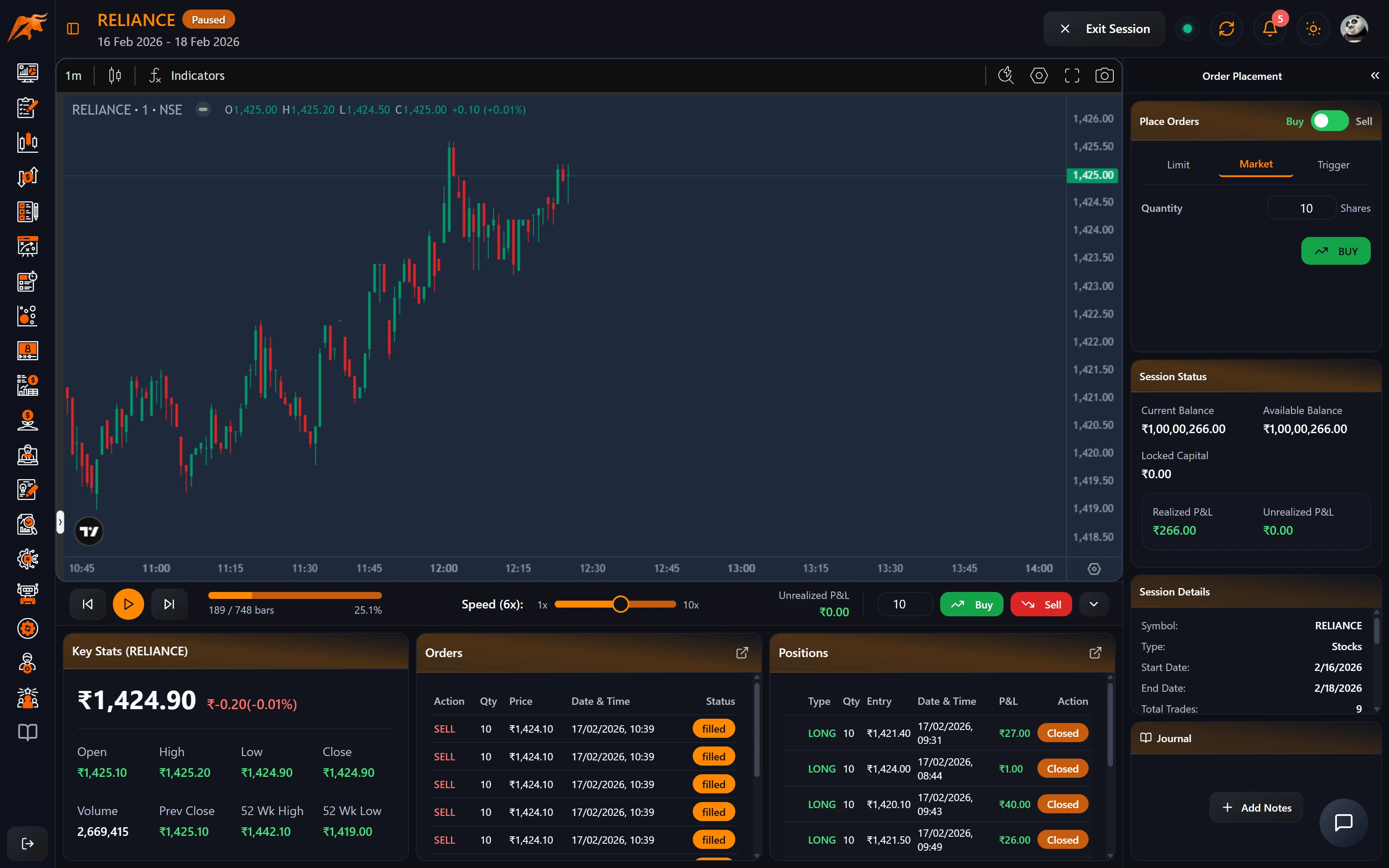
| Area | What it does |
|---|---|
| Replay bar | Step back, play/pause and step forward one candle. The speed slider runs from 1× (one candle per second) to 10×. Shows progress and unrealised P&L. |
| Quick Buy/Sell | Enter a quantity and click Buy or Sell. |
| Order panel | Buy/Sell toggle, quantity and order type. Session Status shows current and available balance, locked capital or margin, and realised and unrealised P&L. |
| Orders / Positions | Recent orders, open positions with a close button for each, and Close All. |
| Journal | Up to 10 notes per session, saved automatically. Analyze runs an AI review of a note. |
How orders are filled:
- Every order fills at market, at the close of the current candle. Limit and trigger orders are filled at market too.
- There are no automatic stop-loss or target orders. Close positions yourself when your exit level is hit.
- An order in the opposite direction closes your existing position first (oldest first); any extra quantity opens a new position.
- Your balance (or margin, when leveraged) must cover the order.
- Progress is saved as you play. The session pauses after 5 minutes without activity and resumes where you left off when you reopen it.
Options sessions
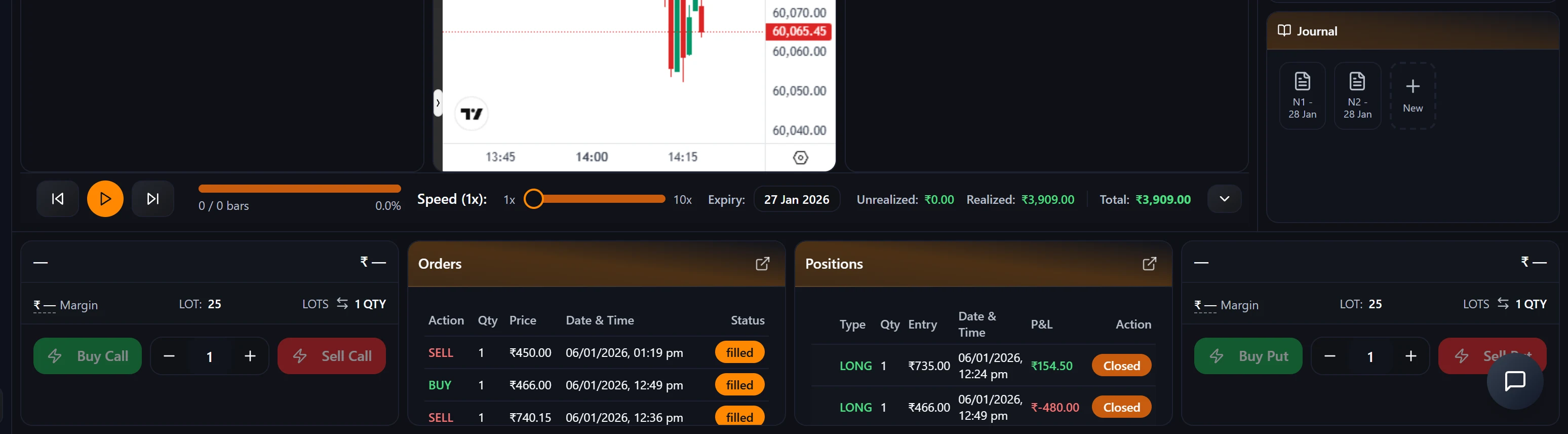
- Options sessions show three charts: Call, Underlying (the master timeline) and Put.
- Use the Call and Put cards to choose a strike, see the premium, margin and lot size, set the number of lots, and Buy or Sell.
- Options are buy to open: Sell closes a long position you already hold. Writing (shorting) options is not supported.
Step 3: Finish and save the session
While you trade, orders are stored in your browser. Click Exit Session when you stop. It shows a summary (trades, win rate, P&L, ROI and profit factor) and syncs your orders. If you close the tab without exiting, the orders stay unsynced and won't appear on the backtesting dashboard, analytics or reports until you reopen the session in the same browser and exit.
When the replay reaches the end date, the session is marked Completed and the trading buttons are disabled.
Step 4: Review your backtests
| Page | What it shows |
|---|---|
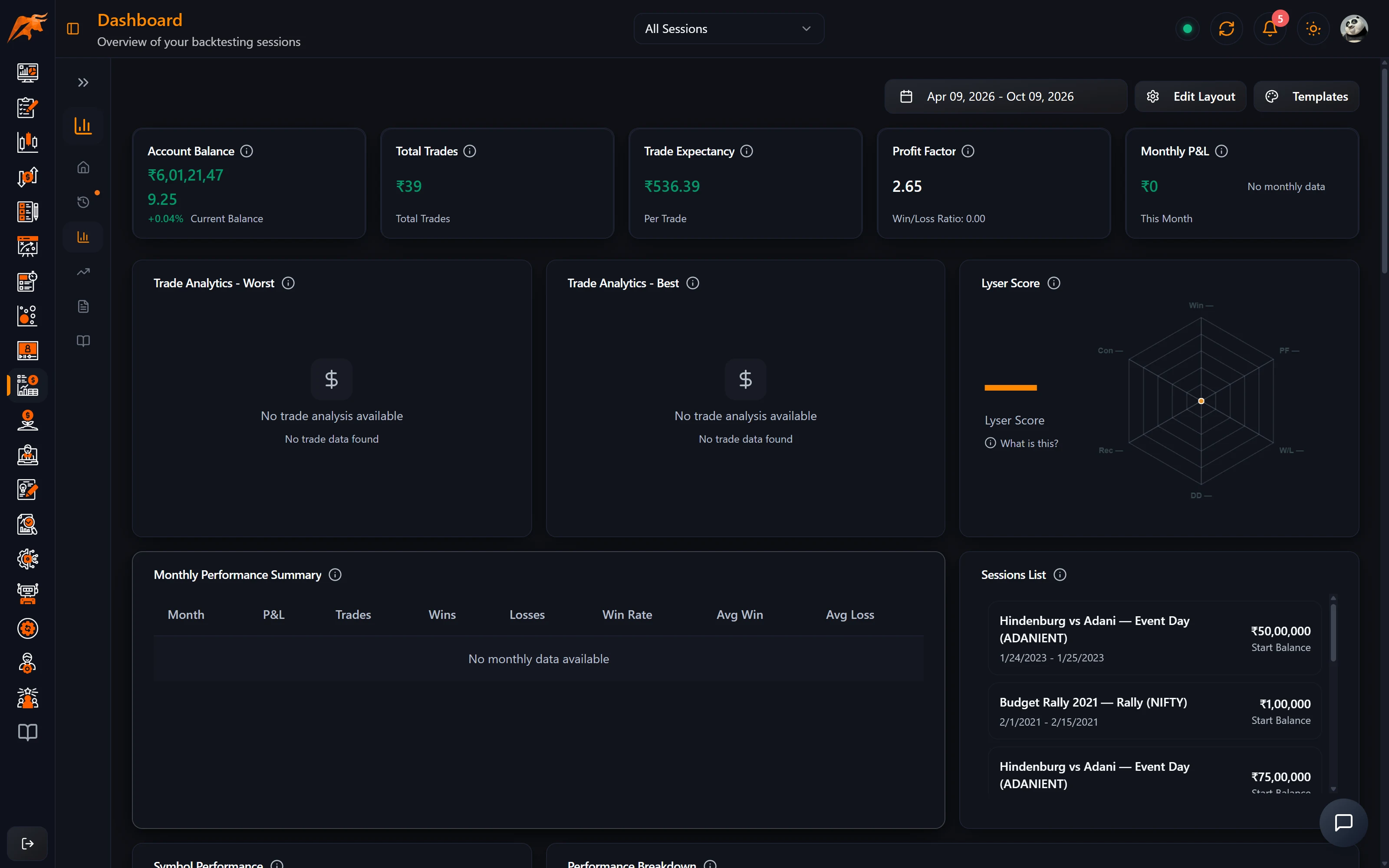
| Dashboard | A customisable widget dashboard: net P&L, win rate, profit factor, expectancy, Sharpe, drawdown, equity curve, calendars, symbol and time performance and more. Choose one session or all, and use Edit Layout and Templates like the main dashboard. |
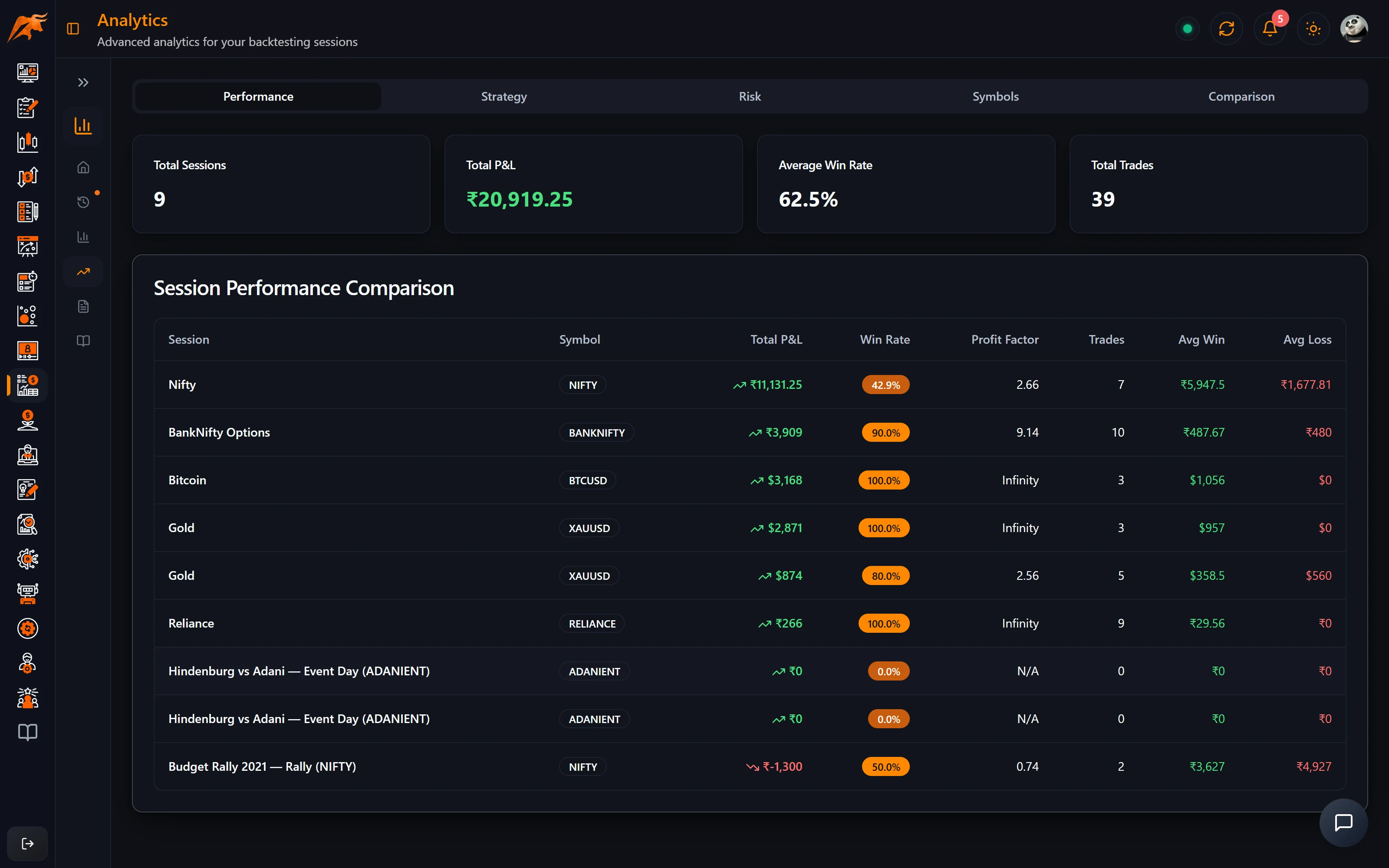
| Analytics | Performance per session, Strategy comparison, Risk (Sharpe, Sortino, Calmar, drawdown, CVaR, ulcer index and more), Symbols, and Comparison of a backtest with your live trades. |
| Reports | Summary charts of P&L, volume, win/loss, R-multiples, holding times and direction, with best and worst days. |
| Notes | All your session notes by session and date. Select a session before creating a new note. |
The backtesting dashboard filters by the historical date of your simulated trades and defaults to the last 6 months. If you backtested 2020, widen the range to include 2020. Today P&L and Monthly P&L use today's real date, so they stay at zero for historical sessions.
Compare a backtest with live trading
- Link the session to a strategy when you create it.
- Tag your live trades to the same strategy in the Strategy Lab.
- Open Analytics → Comparison. It shows how far live results deviate from the backtest. A negative deviation means you did better live.
How to use it in your routine
Once a month, test a new idea in Backtesting before trading it with real money, or replay a famous market day from the Volatility Museum. A good loop is: spot a leak in Trade Replays or Strategy Lab Coaching, write the fix as a rule, practise it in a session linked to that strategy, then check Comparison once you have live trades with it.
Troubleshooting Backtesting
| Problem | What to check |
|---|---|
| A session's trades are missing from the dashboard | You may have closed the tab without Exit Session. Reopen the session in the same browser and exit. Also widen the date range to the historical dates you traded. |
| Today P&L and Monthly P&L show zero | They use today's real date, so they stay at zero for historical sessions. |
| My limit order filled at a different price | All orders fill at market, at the close of the current candle. |
| I can't sell an option I don't hold | Options are buy to open. Writing options is not supported. |
| I can't create another session | The number of sessions depends on your plan, and archived sessions count. Delete sessions you no longer need. |
| The Comparison tab is empty | Link the session to a strategy and tag live trades to the same strategy. |
Frequently asked questions
Can I backtest NIFTY and BANKNIFTY options in TradeLyser?
Yes. Options sessions are available for NIFTY, BANKNIFTY, FINNIFTY, MIDCPNIFTY, SENSEX and BANKEX, with Call, Underlying and Put charts.
Is TradeLyser backtesting automatic or manual?
It is manual, bar-by-bar practice: candles replay and you place every trade yourself, like paper trading on a past market.
Can I use stop-loss orders in a backtest?
No. There are no automatic stop-loss or target orders. Close the position yourself when your level is hit.
Does backtesting use real money?
No. Each session starts with a virtual balance you choose.