Volatility Museum: Practise Trading Famous Indian Market Days
The Volatility Museum is a curated collection of famous Indian market days: crashes, budgets, elections, RBI and Fed decisions, and corporate shocks. You can replay any of them as a backtesting session and trade the day candle by candle with virtual capital. It answers how would I have traded the days that made or broke traders?
Availability: Pro (part of Backtesting). Open it at app.tradelyser.com/backtesting/scenarios, or choose Historic Event when you create a backtesting session.
With the Volatility Museum you can:
- Browse events from 2017 onwards by tier, category and year.
- Read what happened on each day before you trade it.
- Practise either the shock itself or the move that followed.
- Ask Lysa for background, sizing ideas and practice goals for an event.
What you need
| Requirement | Details |
|---|---|
| A Pro plan | The Volatility Museum is part of Backtesting, a Pro feature. |
| Space for a session | Each scenario you use creates a backtesting session. The number of sessions you can keep depends on your plan, and archived sessions count towards it. |
| AI credits (optional) | Only for Ask Lysa questions outside the curated knowledge pack. |
Step 1: Browse events
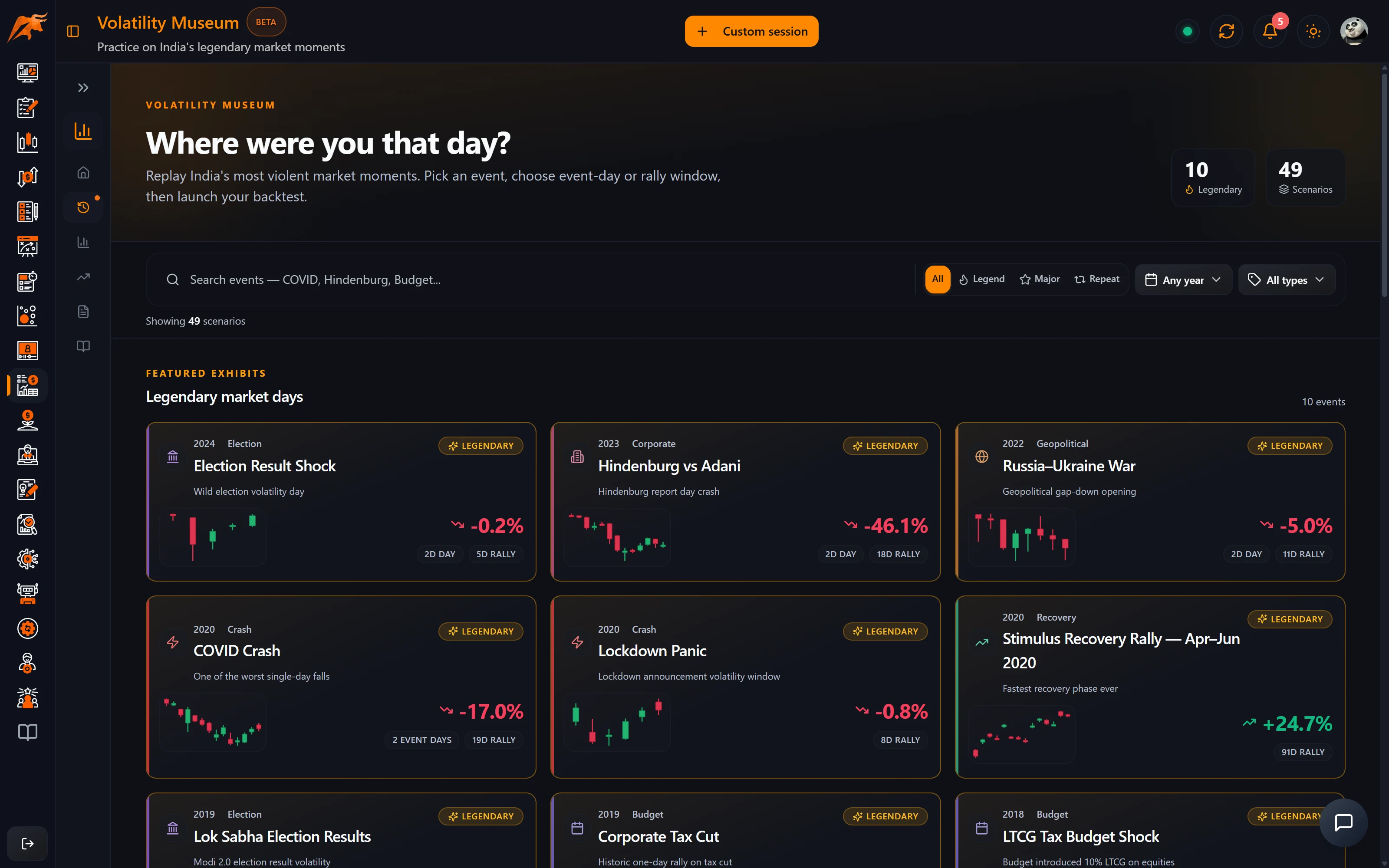
- Open the Volatility Museum. Featured exhibits show the legendary days first, for example the 2020 COVID crash, the 2023 Hindenburg–Adani episode and the June 2024 election-result shock, followed by the full archive.
- Search by name, or filter by year, tier and category.
- Open an event to see its details.
Events are grouped into families, each with a tier, a category and a year:
| Filter | Values |
|---|---|
| Tier | Legendary, Major or Recurring |
| Category | Crash, Recovery, Election, Budget, Corporate, Geo, RBI, Fed, Expiry, Macro |
| Year | From 2017 |
Step 2: Replay an event
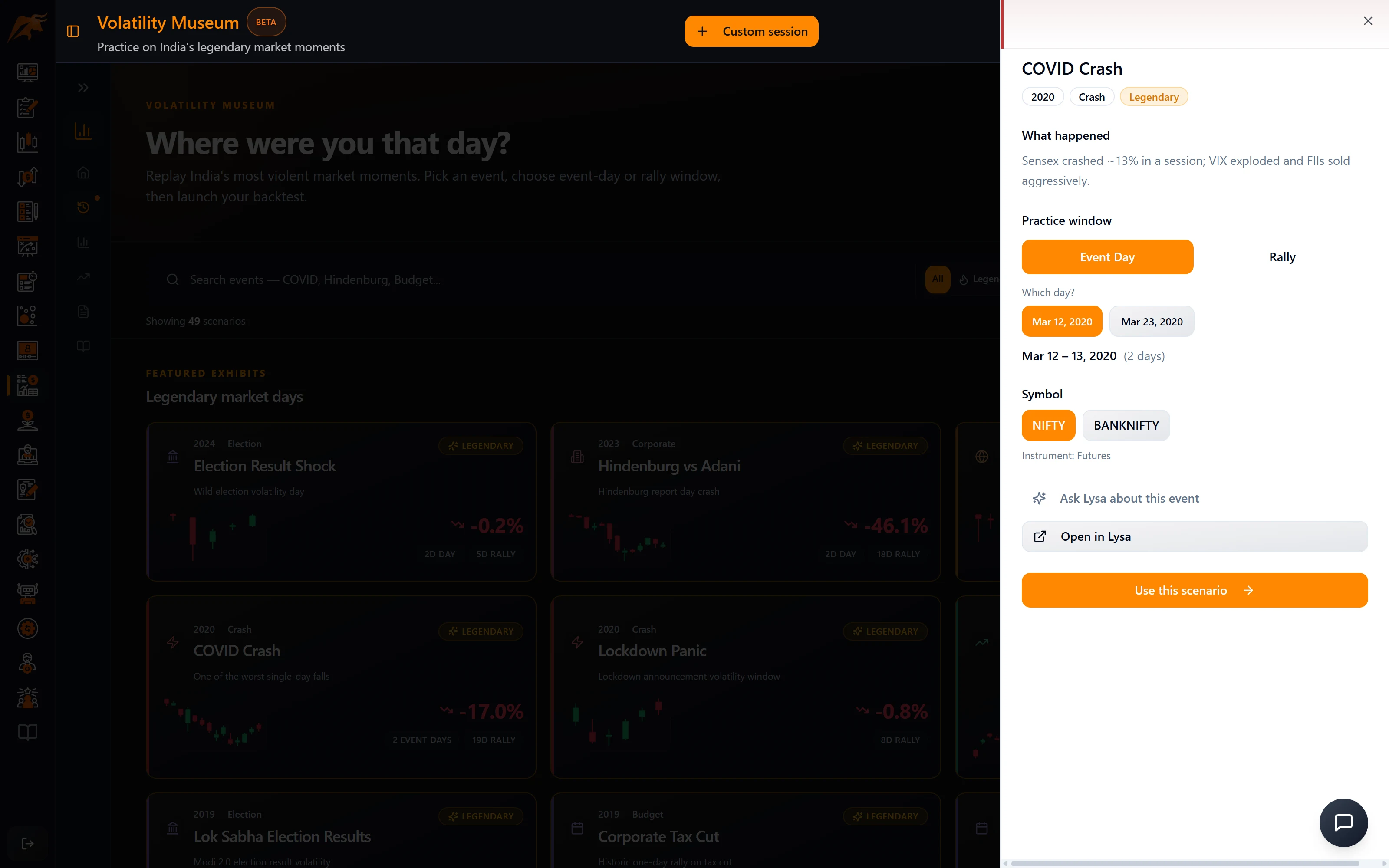
- Read What happened on the event page.
- Choose a practice window: Event Day (the shock itself, up to two days) or Rally (the move that followed). If the event has several dates, pick the day.
- Choose the symbol (primary or secondary).
- Optionally click Ask Lysa about this event for background, sizing ideas and practice goals.
- Click Use this scenario. The create-session form is filled in for you.
- For an options session, add an expiry. Choose your Starting Balance and click Create Session.
| Practice window | What you trade | Good for practising |
|---|---|---|
| Event Day | The shock itself, up to two days | Sizing down, honouring a daily loss limit, and not chasing the first big candle |
| Rally | The move that followed the event | Re-entering after a shock and holding a trend instead of exiting early |
Because the scenario fills in the dates and symbol for you, you can repeat the same window as many times as your session limit allows and compare each attempt.
The session then works like any other backtest. Trade with the replay bar and order panel, and always finish with Exit Session so your orders sync to the backtesting dashboard. See Backtesting for the workspace, order rules and review pages.
Ask Lysa about an event
Ask Lysa answers from a curated knowledge pack first. Those answers are marked Curated and are free. Questions outside the pack are answered by the AI model and use AI credits.
How to use it in your routine
Pick one event a month that matches what you trade, such as an expiry day if you trade weekly options or a budget day if you hold positions through announcements. Then:
- Replay the event once trading your normal plan.
- Replay it again with half size and a hard daily loss limit.
- Compare the two sessions in Backtesting → Analytics to see how much risk control would have mattered.
Link both sessions to the strategy you trade live so the results sit next to your real trades. Then check whether your live trades on volatile days show the same mistakes in Trade Replays and the Market conditions tab of Strategy Lab Analytics.
Troubleshooting the Volatility Museum
| Problem | What to check |
|---|---|
| The Museum is locked | It is part of Backtesting, which needs a Pro plan. See Compare plans. |
| I can't create the session | You may have reached your plan's session limit; archived sessions count. Delete an old session and try again. |
| The form is filled in but an options session isn't ready | The scenario fills in the event, dates and symbol; add an expiry yourself for options sessions. |
| The event session isn't on my backtesting dashboard | Use Exit Session to sync orders, and widen the dashboard date range to the event's historical date. |
| Ask Lysa used credits | Only questions outside the curated pack use credits. Answers marked Curated are free. |
Frequently asked questions
Can I replay the 2020 COVID crash in TradeLyser?
Yes. The 2020 COVID crash is one of the featured exhibits. Open it, choose a practice window and click Use this scenario.
Which market events are in the Volatility Museum?
Crashes, recoveries, elections, budgets, corporate events, geopolitical events, RBI and Fed decisions, expiries and macro days, from 2017 onwards.
Can I trade options on a historical event day?
Yes. Choose an options symbol, add an expiry on the create-session form, and trade the Call and Put charts. Options are buy to open.
Does Ask Lysa cost credits in the Volatility Museum?
Curated answers are free. Questions outside the curated knowledge pack use AI credits.