Wealth Hub Portfolio: Dashboard, Holdings and Compare
The Wealth Hub dashboard, Holdings and Compare pages answer three questions about your long-term investments: what am I worth, what exactly do I own, and am I actually beating the market? Everything is built from the holdings you sync from your broker and the manual assets you add.
Availability: Wealth Hub add-on, available on any plan including Trial. Open the pages at app.tradelyser.com/wealth-hub/dashboard, /wealth-hub/holdings and /wealth-hub/compare.
If you haven't synced holdings yet, start with Wealth Hub setup.
Dashboard
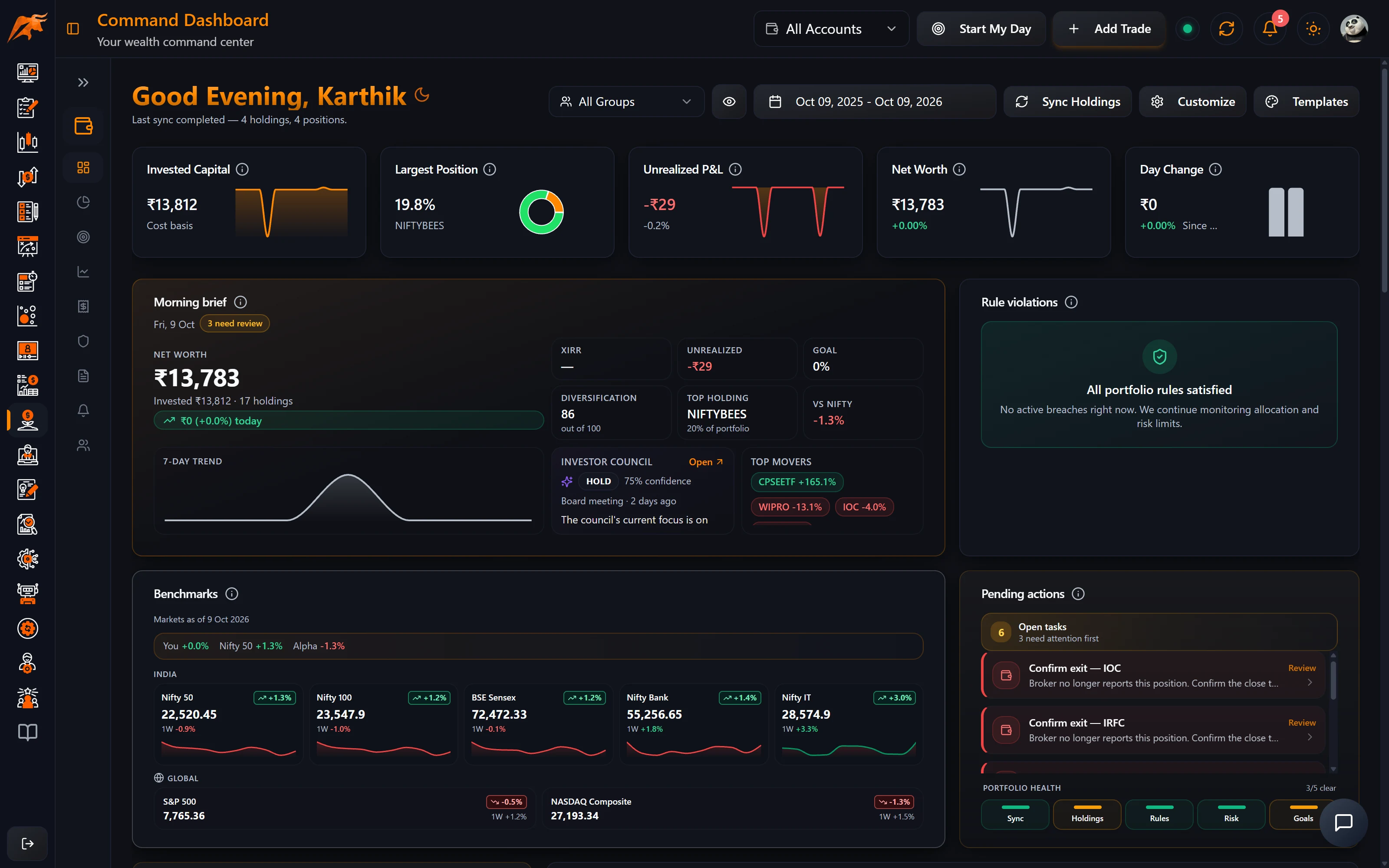
Like the trading dashboard, the Wealth Hub dashboard is made of widgets. Click Customize to add or remove widgets and Templates to save layouts you want to reuse. Use the group or account picker in the header to choose which accounts the dashboard covers, and the eye icon to hide amounts.
| Widget | What it shows |
|---|---|
| Net worth | Quantity × last price of every holding. When no price is available, TradeLyser uses the average cost. |
| Invested capital / Unrealized P&L | Quantity × average cost, and the difference between current value and cost. |
| XIRR | Your annualised return, taking the timing of every investment into account. |
| Diversification score | 100 when your money is spread evenly; lower when a few holdings dominate. |
| Asset allocation, sector exposure, cap mix, geography | How your money is split. |
| Returns vs benchmark / Net-worth curve / XIRR trend | Performance over time against Nifty 50. |
| Needs attention | Holdings waiting for close confirmation, unread alerts and investment-rule violations. |
| Goal rings, FIRE countdown, SIP tracker | Progress towards your goals and how regular your SIPs are. |
| Morning brief | The latest Investor Council summary. |
These charts use daily snapshots of your holdings. They fill in after a few syncs have run.
The Needs attention widget is the place to start each visit: it collects the closes to confirm, unread alerts and rule breaches in one list. The Goal rings and FIRE countdown come from the goals you create on Goals & FIRE, and the Morning brief from the Investor Council.
Holdings
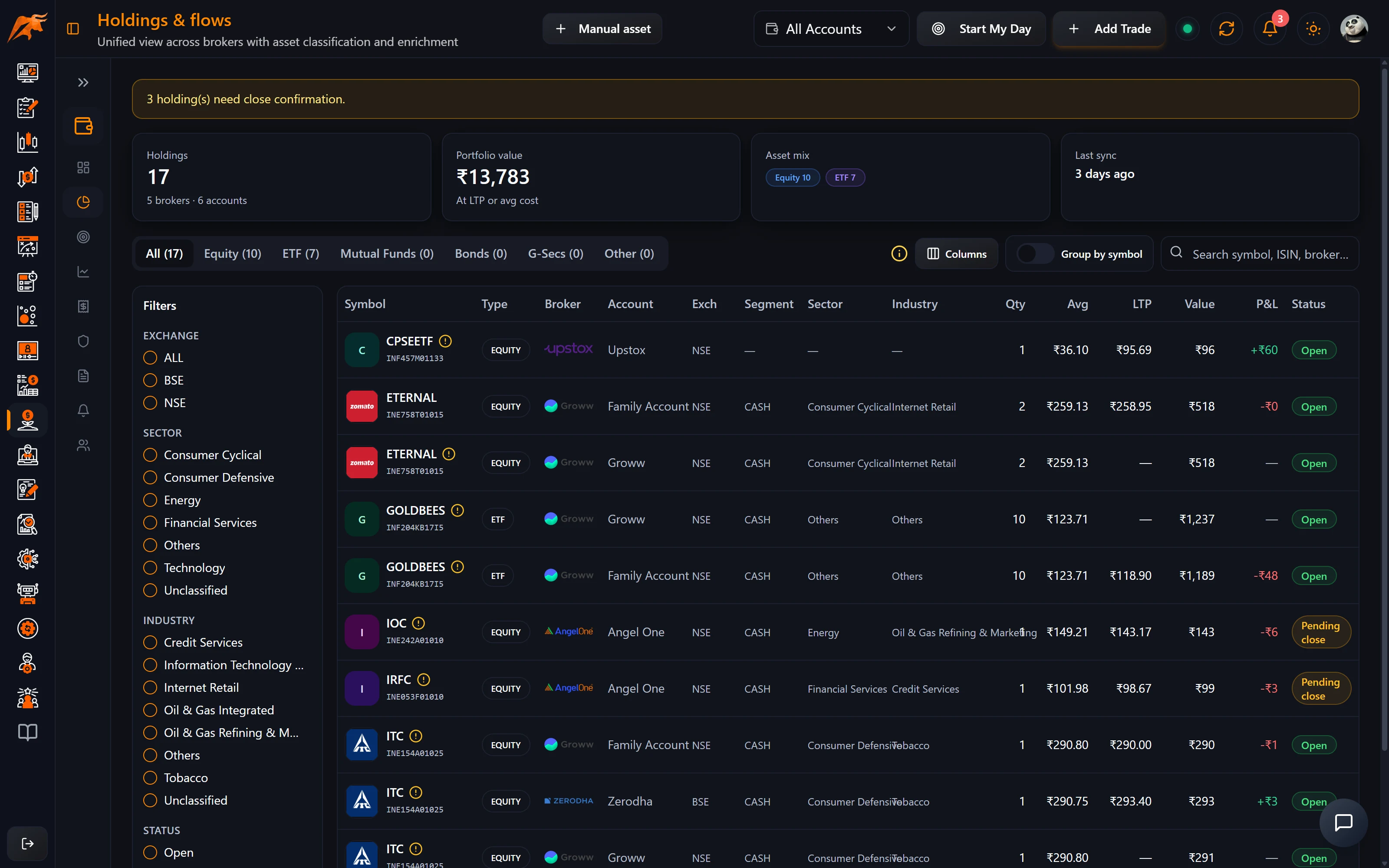
Holdings lists every position from your synced accounts plus your manual assets.
Filter, search and group
- Use the asset type tabs to switch between stocks, funds and other asset types.
- Filter by exchange, sector, industry and status, or search by symbol, ISIN or broker.
- Choose which columns to show.
- Turn on Group by symbol to combine lots of the same holding across accounts into one row.
- Click + Manual asset to add PPF, EPF, NPS, ELSS, FD, SGB, gold, property, insurance, crypto or other assets.
Confirm closed holdings
When a holding disappears from your broker because you sold it, an amber banner asks you to confirm the close. TradeLyser pre-fills the exit price and date when it finds the matching sell order. Confirming the close keeps your realised history accurate. You can choose how closes are handled with Close confirmation mode in Settings → Wealth Hub.
Cost basis badge
Each holding has a cost basis badge that tells you how reliable its purchase information is:
| Badge | Meaning |
|---|---|
| Verified | Purchase information is complete. |
| Partial history | Only part of the purchase history is known. |
| Needs purchase date | The purchase date is missing. |
| Confirmed | You have entered or confirmed the purchase details yourself. |
Click the badge to add the purchase date and average price. This matters for the Tax page: tax lots depend on accurate dates and costs, and they update on the next sync.
Holding details
Click any holding to open its details: your investment thesis notes, corporate actions and sync information. Writing down why you bought a stock makes the next review, or an Investor Council Holding review, much more useful.
Compare – am I winning?
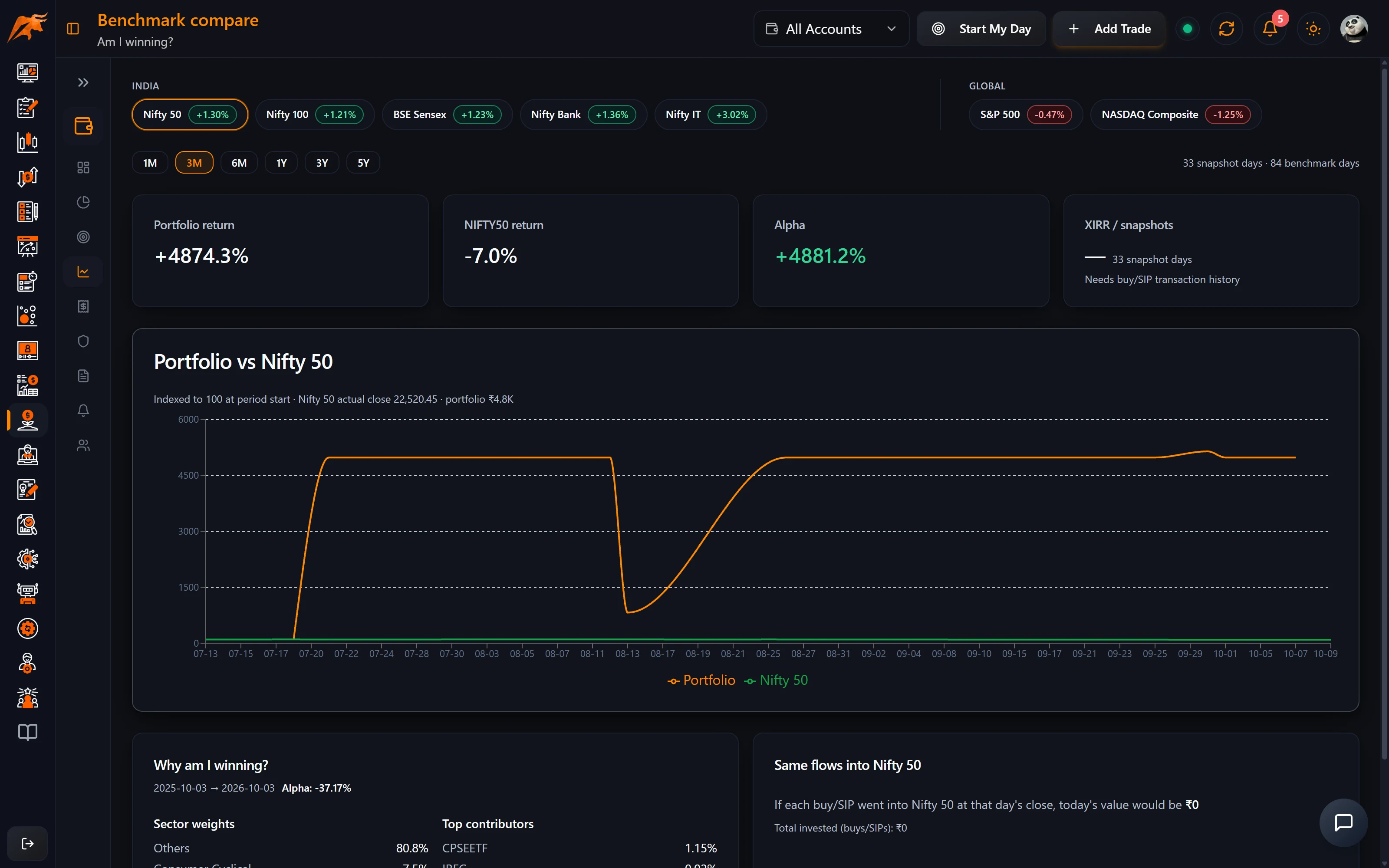
Compare puts your portfolio side by side with an index.
- Choose a benchmark: Nifty 50 (default), Nifty 100, Sensex, Midcap 100, Bank Nifty, Nifty IT, S&P 500 or Nasdaq.
- Choose a period, from 1M to 5Y.
- Read the cards and chart:
| Element | What it shows |
|---|---|
| Portfolio return | The change in your portfolio's value over the period. |
| Benchmark return | The index's return over the same period. |
| Alpha | Portfolio return minus benchmark return. |
| XIRR | Your latest annualised, timing-adjusted return. |
| Chart | Both your portfolio and the index, indexed to 100 at the start of the period. |
| Same flows into the index | What you would have today if every purchase had gone into the benchmark instead. |
Same flows into the index is the clearest test of whether your stock picking is paying off: it uses your own investment dates and amounts, so the only difference is what you bought.
Portfolio return on this page is the change in value over the period, so money you invested during the period also raises it. Use XIRR and the Same flows into the index comparison for a contribution-adjusted view.
How to use it in your routine
- After each sync: check Needs attention on the dashboard and confirm any closes.
- Once a month: fix any holdings whose cost basis badge isn't Verified or Confirmed, so XIRR and tax lots stay accurate.
- Once a quarter: open Compare on 1Y and 3Y against Nifty 50 and look at Same flows into the index.
Troubleshooting
| Problem | Fix |
|---|---|
| A holding is missing | Check the account picker in the header, then run Sync Holdings. Only Auto Sync accounts at supported brokers sync holdings. |
| Net worth looks too low or too high | Check whether an asset has no live price (average cost is used) and whether manual asset values are current. |
| XIRR, net-worth curve or trend are empty | Wait for a few daily syncs to build snapshots. |
| Tax lots look wrong | Click the cost basis badge and add the purchase date and average price; lots update on the next sync. |
| Amber close banner keeps showing | Confirm the close for the sold holding. |
Frequently asked questions
How does TradeLyser calculate my net worth?
Net worth is quantity × last price for every holding, using average cost when no price is available, plus the values you entered for manual assets.
Does TradeLyser show XIRR for my portfolio?
Yes. The XIRR widget on the dashboard and the XIRR card on Compare show your annualised return, taking the timing of each investment into account.
How do I check if my portfolio beats Nifty 50?
Open Compare, keep Nifty 50 as the benchmark, pick a period and look at Alpha and Same flows into the index.
Can I combine the same stock held in two demat accounts?
Yes. Turn on Group by symbol on Holdings to combine lots across accounts.