Trade Insights: Playbook, Edge Map and What If
These three Trade Insights tools turn analysis into action. Playbook builds "avoid" rules from your own data and tracks how well you follow them. Edge Map shows where in your book the money is made and lost. What If replays your history with different rules to show what you would have made if you had followed them.
Availability: Pro plan. Open them at app.tradelyser.com/trades-analysis/playbook, /trades-analysis/edge-map and /trades-analysis/what-if.
All three use the date range at the top right and the account selected in the header, and work on closed trades only. For the shared terms (sessions, duration buckets, underlyings), see How Trade Insights works.
Playbook
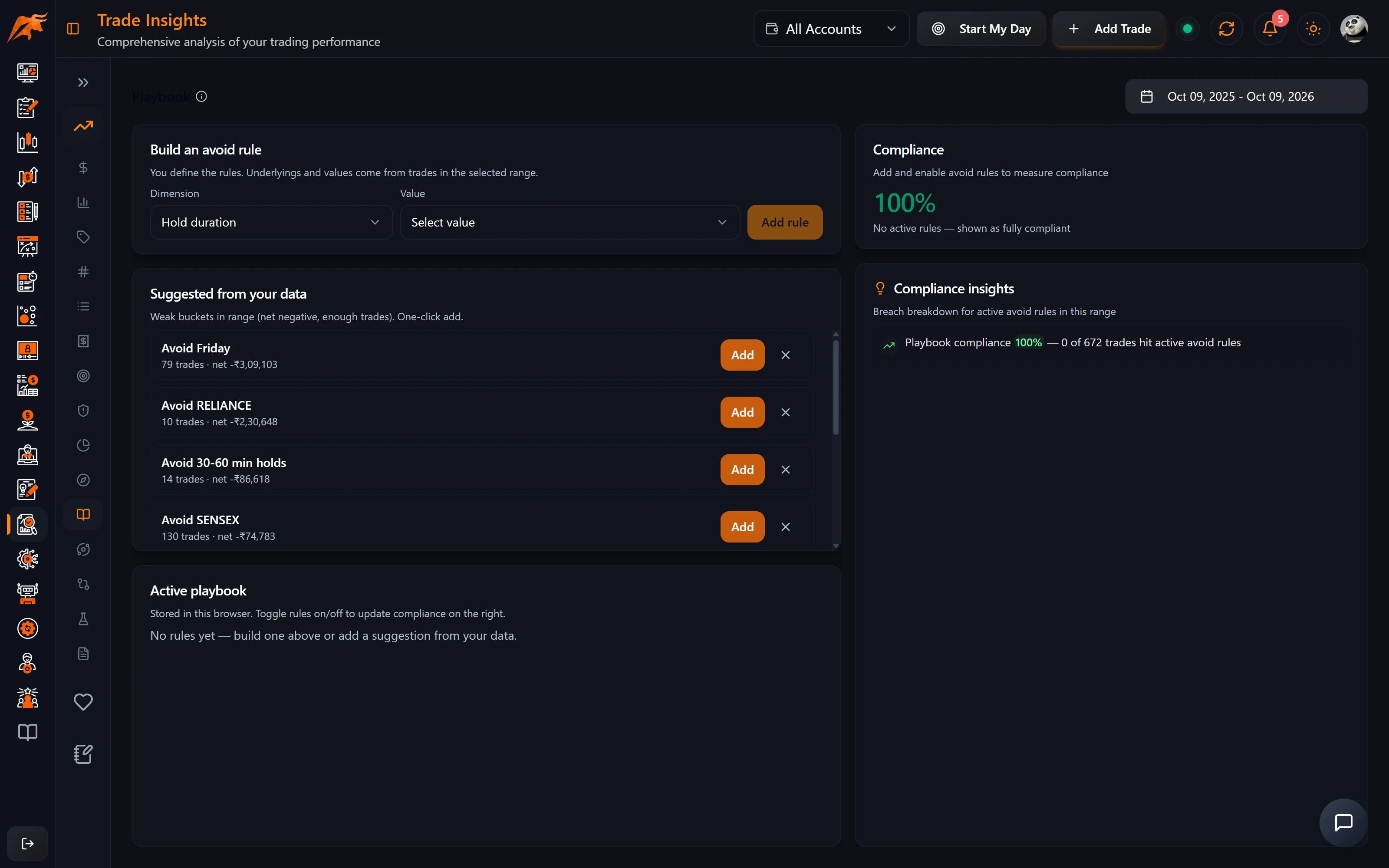
- Review Suggested from your data. TradeLyser lists the losing buckets with enough trades behind them, worst first (for example Avoid 0–1 min holds · 14 trades · −₹9,200). Click Add to adopt one, or × to dismiss it.
- Or build your own: choose a Dimension, a Value, then click Add rule.
- In Active playbook, switch rules on or off, or delete them.
- Watch Compliance: the percentage of trades that did not break any active rule. It shows green at 80% or more.
| Dimension | Example rule |
|---|---|
| Hold duration | Avoid 0–1 min holds |
| Day of week | Avoid Friday |
| Session | Avoid Midday (11:00–14:00) |
| Underlying | Avoid BANKNIFTY |
| Position | Avoid short trades |
Playbook rules are saved in this browser only. They don't sync to your other devices, so build your playbook on the computer you review on most. For rules that track daily limits across devices, use the Discipline Diary.
Good candidates for rules come straight from the other tabs: a losing hour on P&L Analysis, a negative-expectancy day on Expectancy or a red session on Alignment.
Edge Map
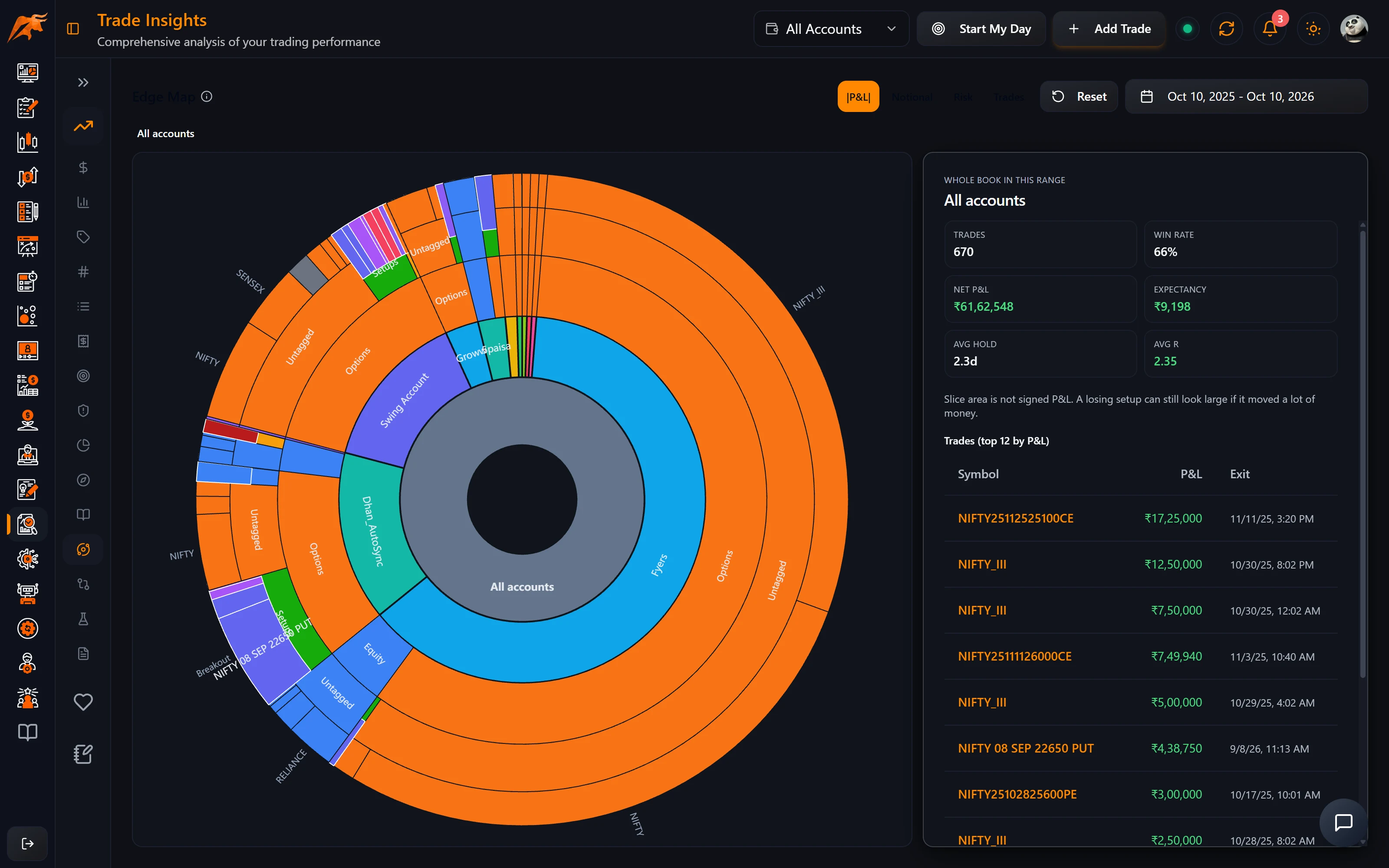
The Edge Map is a sunburst chart of your book. From the centre outwards the rings are:
- Account (only when All Accounts has more than one)
- Instrument (equity, futures, options)
- Tag category
- Setup
- Symbol
Each trade is placed under its primary tag. Untagged trades go to Untagged, so a large Untagged slice is a sign to tag more of your trades.
| Control | What it does |
|---|---|
| Size by | Changes what slice size means: |P&L| (default), notional value, risk or number of trades. |
| Click a ring | Zooms into that slice. Click the centre to zoom out, or use the breadcrumbs. |
| Reset | Returns to the top level. |
| Inspector | Shows trades, win rate, net P&L, expectancy, average holding time and average R for the selected slice, plus its top trades. |
A large slice can be a large loss. Always check the colour and the inspector's Net P&L before drawing conclusions.
What If
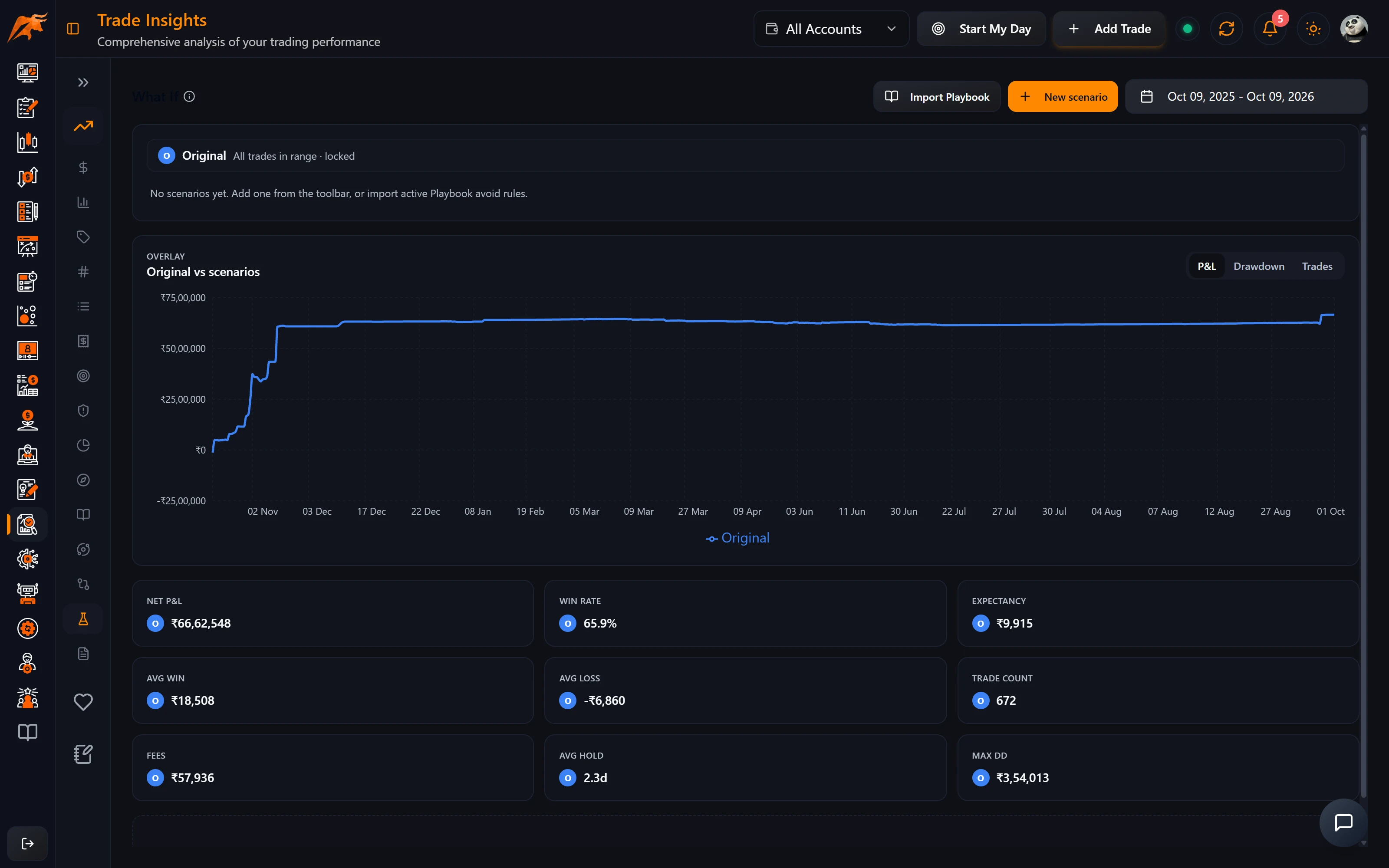
What If answers "what would I have made if I had followed this rule?" without touching your real trades.
- Click New scenario (up to three: A, B and C) or Import Playbook to turn your active playbook rules into scenarios.
- Add filters that drop trades. Use Match any of or Does not match any of. All filters in a scenario apply together.
- Optionally add rewrites that change the trades you keep.
- Compare the scenarios with the Original on the chart (P&L, Drawdown or Trades) and on the stat cards.
- Check Kept vs dropped to see exactly which trades each scenario removed and why.
| Filters (drop trades) | Rewrites (change kept trades) |
|---|---|
| Underlying, account, side, instrument, call/put | Size × %: scale every trade, 1–500% |
| Day, session, hold time | Cap at stop: losses limited to your stop loss |
| Setup tag, mistake tag, status | Cap at target: wins limited to your target |
The stat cards show net P&L, win rate, expectancy, average win and loss, trades, fees, holding time and max drawdown for each scenario.
Cap at stop and Cap at target drop trades that have no stop loss or target from that scenario, and a note shows how many. Add stops and targets to your trades for an accurate comparison.
Scenario A: Mistake does not match any of [Revenge] plus Cap at stop. If it shows +₹31,000 and a 40% smaller drawdown than the original, those two habits (no revenge trades and always honouring the stop) are worth more than any new setup.
To compare whole strategies rather than single rules, see How to compare trading strategies on the TradeLyser site.
How to use them together
- Add the top one or two Suggested from your data rules to your Playbook.
- In What If, click Import Playbook and check how much each rule would have changed net P&L and drawdown.
- Keep the rules that clearly help and switch off the rest.
- Each week, check Compliance and the Weekly Brief to see whether you followed them.
Troubleshooting
| Problem | Fix |
|---|---|
| No trades in this date range on What If or Edge Map | Change the date range or the account in the header. |
| No rules under Suggested from your data | Suggestions need losing buckets with enough trades behind them. Widen the date range. |
| My Playbook rules disappeared | Rules are stored in the browser. A different browser, device or cleared site data starts with an empty playbook. |
| Edge Map is mostly Untagged | Tag your trades (Add tags) so they fall under a tag category and setup. |
| Cap at stop drops many trades | Those trades have no stop loss. Add one in Trade Details. |
Frequently asked questions
Can I backtest my own trading rules on my past trades?
Yes. What If replays your real closed trades with filters and rewrites, for up to three scenarios at once, and compares each against your original results.
Does What If change my trades?
No. Scenarios are a simulation. Your trades, P&L and journal stay exactly as they are.
Do Playbook rules sync across devices?
No. They are saved in the browser you created them in.
What does Compliance mean in the Playbook?
The percentage of trades in the date range that did not break any active rule. 80% or more shows green.